
Overview
When a Proposal Development document is submitted for review the individuals listed in your Proposal Development workflow all have to review and approve the proposal before it can be submitted to the sponsor. The system provides a series of tools to facilitate this process including notifications, a summary/submit screen in the Proposal Development document and individual Action Lists.
Approval Notifications
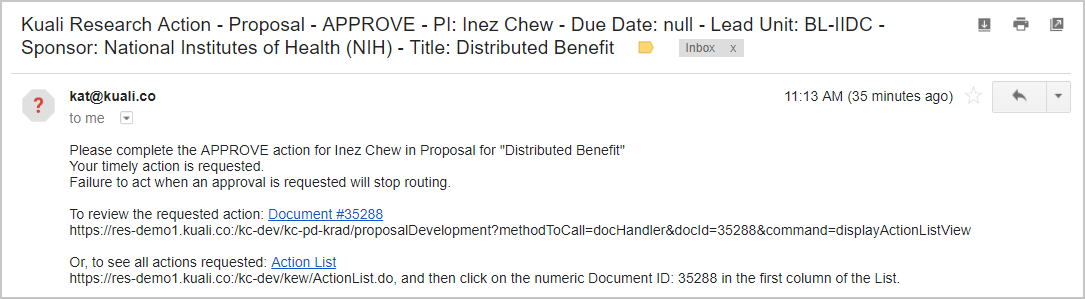
When a Proposal is submitted for review or an approval stop in the route log is completed a Notification is sent to all users listed in the next level of the route log. The notification includes several details about the proposal in the subject line of the email. If the user clicks on the Document# link they will be taken immediately to the Summary/Submit screen of the Proposal and can complete their review. If they click on the Action List link they will be taken to their Action List and can see a list of all items that are pending their review.
Action List
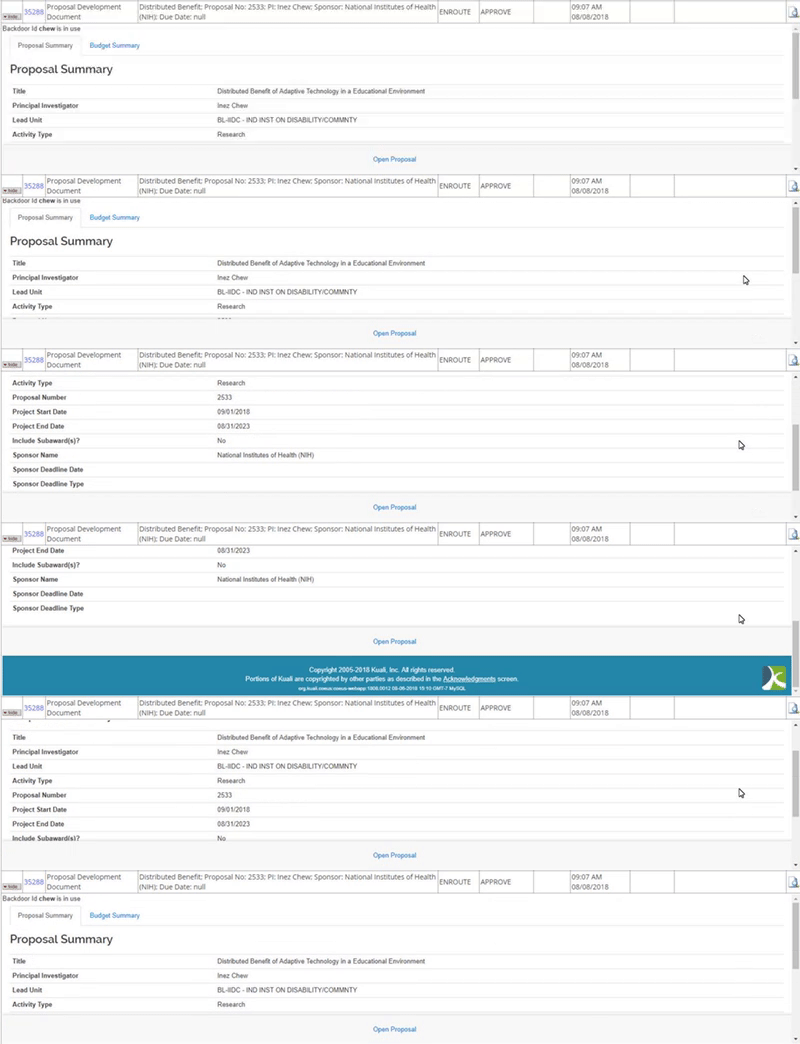
Each user has an Action List that lists all of the documents waiting on their action. The most recent documents will be at the end of the Action List, and older documents will be at the beginning of the Action List. For more details on how individuals can configure their Action List see the Cross Module - Workflow Preferences article. If you click on the show button next to an item in your action list the system will display additional high level details about the document. If you click on the blue document number it will open the document in a new tab.
Summary/Submit Page
When an approver opens a Proposal Development document from the search screen, their Action List, or from the workflow notification they will be taken to the Summary/Submit screen. For more information on the actions that are possible in the Summary/Submit screen see the Proposal - Summary/Submit article. Approvers brought to this screen will see the sections your institution has configured in their Parameters - Summary/Submit Display Parameters.
On the Proposal Summary tab the approver will see general information about the Proposal and the certification statement your institution has configured in the Parameter - propSummaryDisclaimerText parameter which is highlighted below.
The Personnel section will display all Key Personnel on the Proposal along with a link to their certification questionnaires.
The Compliance section will display all additional review required on the proposal.
The Attachments tab will display all attachments on the proposal.
The Questionnaire tab will display the answers to all questions on the proposal.
The Supplemental Info tab will display the answers to all Cross Module - Custom Data Fields configured by your institution.
The Budget Summary will display the budget details for the budget marked for submission with this proposal. This view includes high level cost share, and rate information for the budget.

Approver Comments
If your institution has Parameters - ENABLE_PD_WORKFLOW_APPROVAL_COMMENTS set to true then when you approve a Proposal Development document you will be shown a lightbox where you can add an approval comment and/or an attachment. This box is not required. If you do enter a comment it will display in the Notes section of the Proposal and the Annotation section of the Route Log. If you add an attachment it will be added to the Attachments section of the Proposal with the Attachment Type your institution has defined in Parameter - approveNarrativeTypeCode.

Comments
0 comments
Please sign in to leave a comment.