
Overview
The Proposal Award Person Role table in the Maintenance tab gives the ability to configure the Key Personnel role type options in Proposal, IP, and Award. It also gives options related to edit ability, Unit, Certification, and how the units are pulled when a person is added in the Key Personnel section of the Proposal module. Although the key person role type options are limited to the 4 hardcoded Role IDs of PI, MPI (aka Multi-PI), COI, and KP in the system you can configure how the role descriptions appear to the end user. This table is driven by Sponsor Hierarchy name so all sponsors in a given hierarchy will display the Person roles consistently and how you desire. This works in conjunction with the PERSON_ROLE_SPONSOR_HIERARCHIES parameter so if the Sponsor Hierarchy name is present in the parameter and configured in the Proposal Award Person Role table it will use the role names and logic specified for documents in Kuali Research.
The Unit Auto-Population & Selected Units Source columns adds the ability to pull proposal personnel units from multiple sources automatically when the person is added. Users can still modify/delete after all units appear but this drives an opt out rather than opt in version of person units.
Proposal Award Person Role table
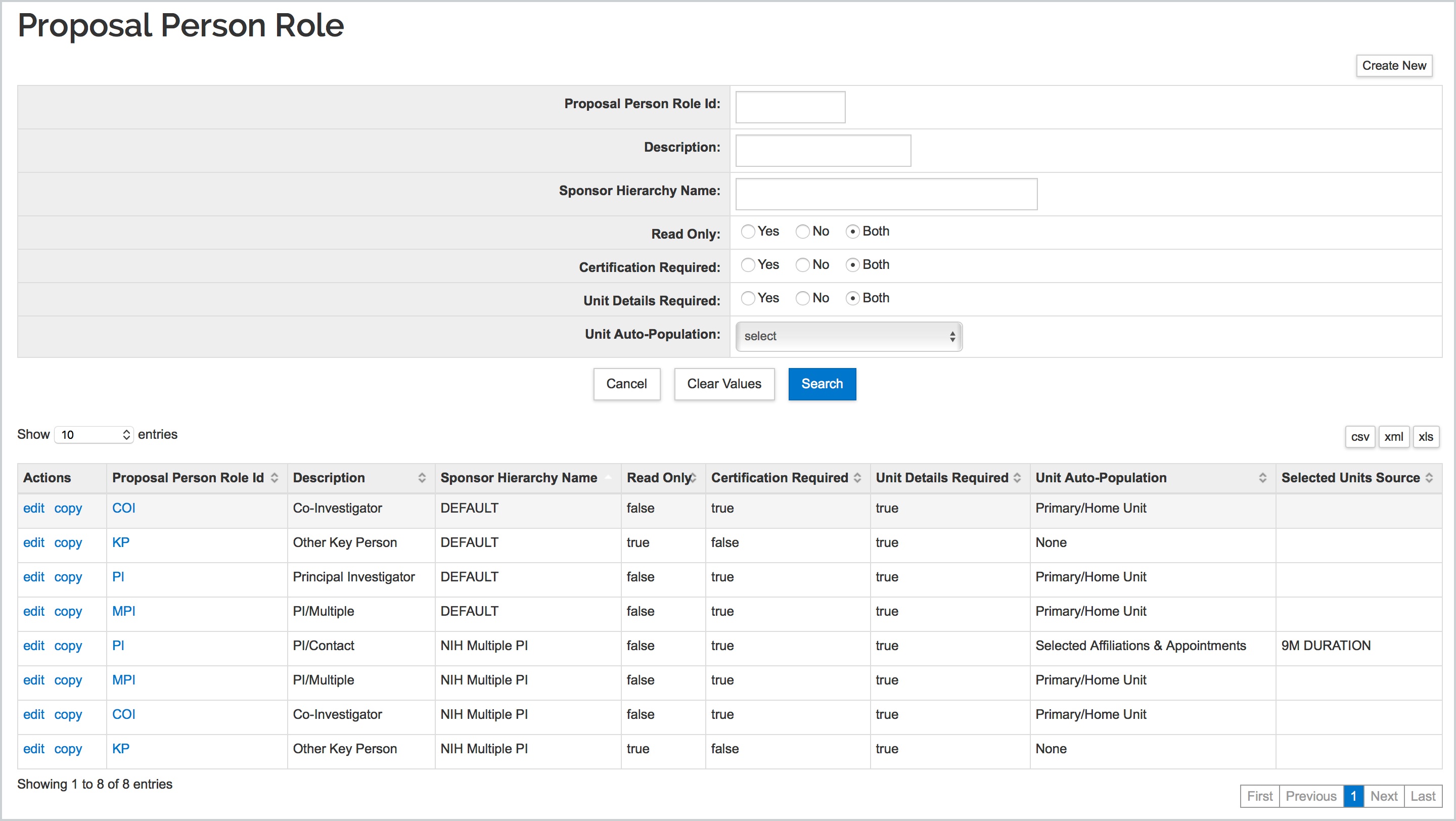
The DEFAULT rows in this table will drive how all sponsors will treat Key Personnel roles. However, if you add additional roles under a different Sponsor Hierarchy it will ignore the DEFAULT settings and use the specified role descriptions for those sponsors under the specified hierarchy. For example, in the above scenario all sponsors will use the DEFAULT roles of Principal Investigator, PI/Multiple, Co-Investigator, and Other Key Person. However, any sponsor that's in the 'NIH Multiple PI' Sponsor Hierarchy will be given slightly different selection options of PI/Contact, PI/Multiple, Co-Investigator, and Other Key Person. Having the ability to add the MPI Role ID will allow institutions the option to add the Multi-PI selection to all or a subset of sponsors by hierarchy - so it's not just limited to NIH. Below is more information on the available fields in this maintenance document.
- Proposal Person Role ID: This is the hardcoded value in the system and drives the form mapping - valid entries are PI, MPI, COI or KP
- Description - Role name that will appear to the user when you assign a role for Key Personnel (applies to Proposal, IP, Award).
- Sponsor Hierarchy Name - add the hierarchy name which defines when this role shall appear. Use DEFAULT for choosing those sponsors that do not appear in any hierarchy listed in the Proposal Award Person Role table.
- Read Only - makes the role read only after selection and not editable once the person is added (only applies to adding personnel in Proposal).
- Certification Required - Determines whether the certification will be required for the given role. Generally the PI, MPI, and COI should be true and KP false. Be aware additional parameters are available around certification functionality also (only applies to adding personnel in Proposal).
- Unit Details Required - Determines whether a Unit is required to be added for the given role. Generally the PI, MPI, and COI roles should be true and KP false. Also, make sure to mark true if you opt into credit split for the given role (only applies to adding personnel in Proposal). These units are used for workflow approval logic depending on your PeopleFlow and Agenda configuration.
- Unit Auto-Population - Gives logic options to populate proposal personnel units automatically upon add; further detailed on selections outlined below (only applies to adding personnel in Proposal). These units are used for workflow approval logic depending on your PeopleFlow and Agenda configuration.
- Selected Units Source - Gives additional granularity of affiliation/appointment type options to populate proposal personnel units automatically if Selected Affiliations & Appointments chosen in prior field; further detailed on selections outlined below (only applies to adding personnel in Proposal). These units are used for workflow approval logic depending on your PeopleFlow and Agenda configuration.
Creating New or Edit
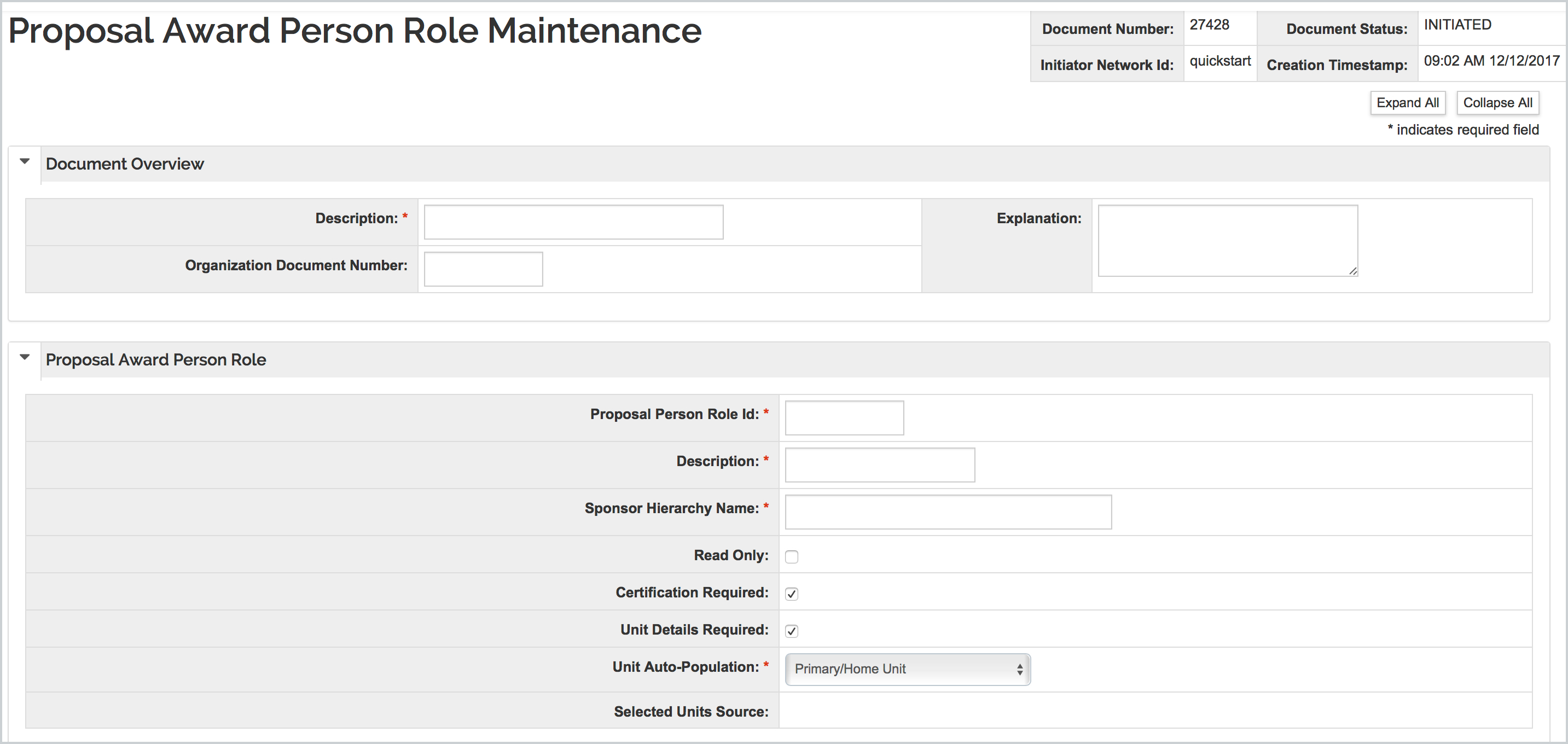
Users that have the appropriate permissions can edit, copy, or create new in the Proposal Award Person Role maintenance table. Upon create new or edit you have the above mentioned fields that become available. Below is additional information on using the Unit Auto-Population and Selected Units Source fields.
Unit Auto-Population

This dropdown gives the option to populate proposal personnel units automatically upon add from appointments and affiliations, based on the following configuration options:
- None - No units will be automatically populated for this role - this selection is not available for PI/Multi-PI/Co-Investigator roles since at least one unit is required.
- Primary/Home Unit - Only automatically populate the person's home unit (current behavior for investigators)
- All Affiliations & Appointments - Populate all active units listed in the person record employment info section and kuali person extended attributes appointments sections.
- Selected Affiliations & Appointments - Populate only active units listed in the employment info / appointments sections based on a comma-separated list of affilliation types and appointment type codes. If this option is selected further configuration is required in the next field 'Selected Units Source field so you can specify the affiliations/appointments that should be pulled.
Selected Units Source

If the Selected Affiliations & Appointments option is selected in the Unit Auto-Population field then you must complete the Selected Units Source dropdown to specify which auto-population logic should be used when adding personnel in proposal.
The options available come from the Affiliation Type(s) and Appointment Type(s) configured in your local implementation. It allows you select a singular option or multiple selections that will be brought over automatically as a Unit if added to the proposal under the given person role. This gives granularity to the auto-population logic so you can choose the exact types of units you want to pull from the Person and/or Extended Attributes document for the individual when adding a person in the key personnel section of a proposal.
Assigning Default Permissions or Workflow
If you want to assign default permissions to your new role complete the steps in the System Admin - Create a Custom Role and select one of the following role types depending on the module you want to define permissions and workflow for:
- Derived Role: Investigators
- Derived Role: Institutional Proposal Investigators
- Derived Role: Award Investigators
- Derived Role: Negotiation Investigators
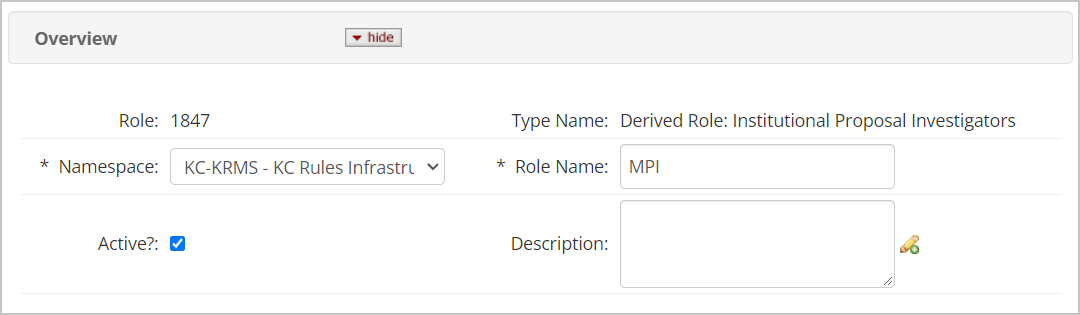
Assign the appropriate Proposal Person Role ID (MPI, COI, etc.) as the name of your role. Any permissions you assign to this role will be assigned on a document basis to anyone with this role. If you assign this role to an Advanced Peopleflow document and associate it with the appropriate module in a KRMS Agenda you can also drive routing based on the role. You must create a role for each module in which you want to provision permissions or define workflow.
Related Parameters
- keyPersonProjectRole
- ENABLE_ADDRESSBOOK_CERTIFICATION
- EXEMPT_ADDRESSBOOK_MULTI_PI_CERT*
- KEY_PERSON_CERTIFICATION_SELF_CERTIFY_ONLY
- ENABLE_OPT_IN_PERSONNEL_CREDIT_SPLIT_FUNCTIONALITY
- CREDIT_SPLIT_OPT_IN_DEFAULT_ROLES
*duplicative of ENABLE_ADDRESSBOOK_CERTIFICATION and not used typically.
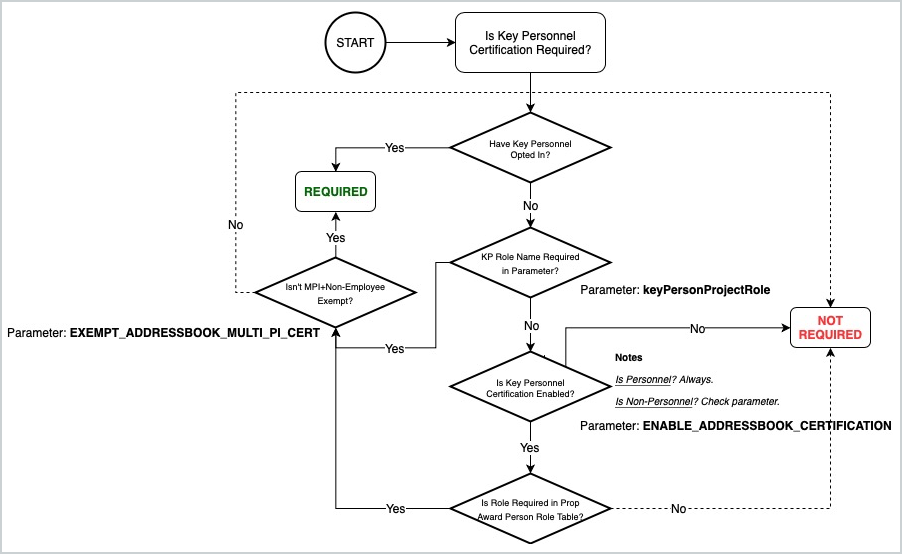
The logic on the above parameters along with the configurations in the Proposal Award Person Role table follow the below logic.
NOTES
- The MPI Role ID is not required if you don't want to add to the DEFAULT option or other Sponsor Hierarchies.
- However, if you utilize the ALL_SPONSOR_HIERARCHY_NIH_MULTI_PI parameter as Y and want to instead utilize the Proposal Award Key Person table make sure to add the MPI option in the DEFAULT option before switching this parameter to N. This will allow you view existing proposals already utilizing the Multi-PI option under the parameter and will make sure the MPI option is still available.
- Be aware that the PI, MPI, COI, and KP Role IDs will drive form mapping for role information/logic.
- Edit and Copy are available so it is possible to copy one of the types and update to be for a different hierarchy.
- Inactivate option forthcoming.
Comments
0 comments
Article is closed for comments.