
Overview
The S2S Submission Override is a powerful feature that allows a user with the appropriate technical knowledge to modify the XML being transmitted to Grants.gov. This can be used in cases where a system issue or form schema issue is preventing the submission when attempting to use the system generated XML. It could also be used in cases where the sponsor specifies atypical uses for form fields in the program announcement not supported by the system mapping, however, we may suggest using User Attached Forms in those cases instead.
Caution!
This is a very powerful feature, and should only be used by a technical resource familiar with XML. For hosted customers, Kuali would prepare the Override on your behalf for the proposal submission and you can submit a support ticket to Kuali for assistance.
Please also note, if the Submission Override is used the Forms print will not look at the submitted override XML and will still display the system generated forms. You will only be able to view the transmitted XML file to see the updates and they cannot be print previewed in PDF.
Permissions Required
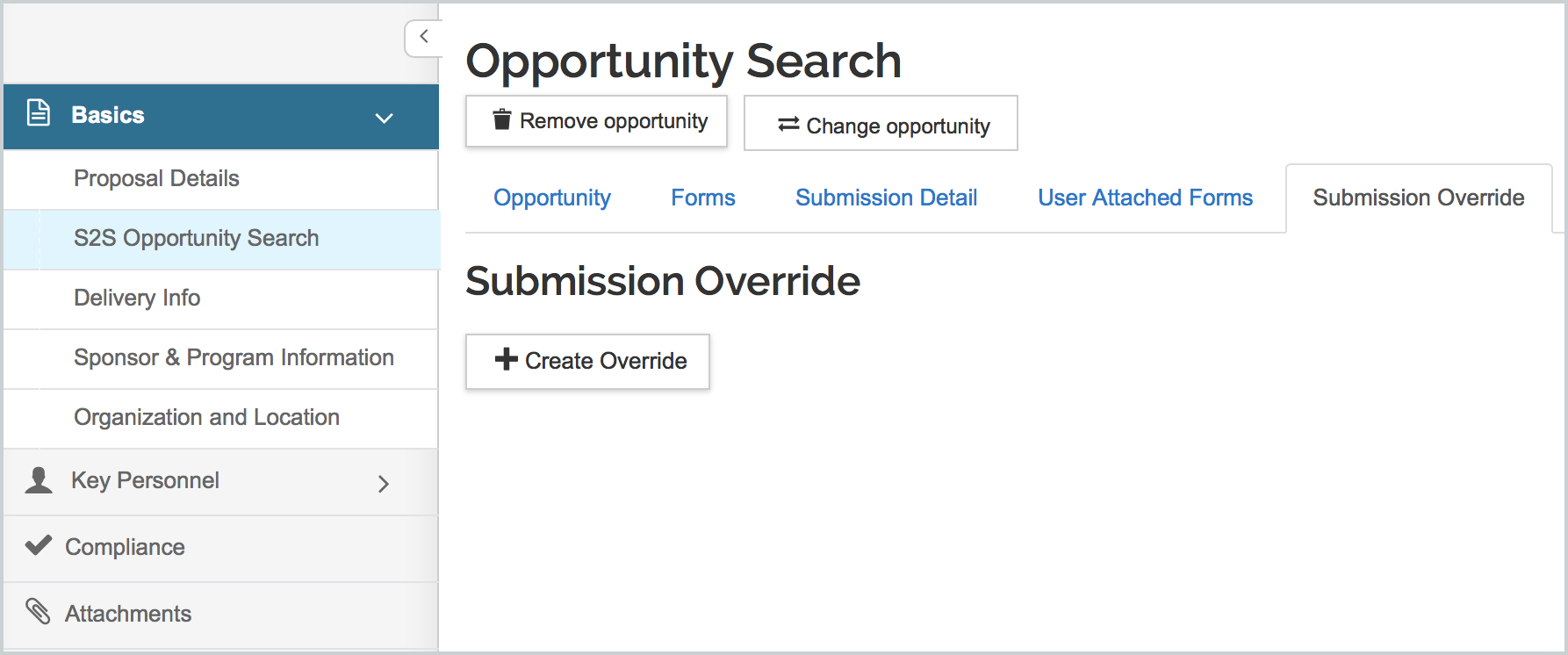
The Submission Override tab in the S2S Opportunity Search tab is only available to users with the appropriate permission of 'Modify S2S Override'. This permission is in the 'S2S Administrator' role and be aware this is a Unit driven role based on the Lead Unit of the proposal - so you will need to add a row for each unit you need access or add at the top level and descend hierarchy to have access for all units.
Using the Submission Override
If you have the appropriate permissions you will see the Submission Override tab available in the S2S Opportunity Search tab. Within you will see the button of Create Override that let's you start the process.
NOTE: It is recommended that all validation errors are cleared and submission is complete/final prior to creating the S2S Override.

Within the Override create window you will need to add the following:
- Description: Text description to explain the need for the S2S override.
- Signed By: User that will map to the AOR information on the 424 coversheet; person that would perform the 'submit to sponsor' action.
- Submitted Date: Date to be entered for the Signature Date on the 424 coversheet.
- Active: When checked, the proposal will use the Override XML to transmit to Grants.gov

Once created you will see this general information at the top of the override page - if the AOR or date needs to be changed a new override will need to be created.
At the bottom you will see the XML file for the Current Application (how the system generates by default without alterations) and it will also show all applicable attachments for the transmission in the Current Attachments panel.
NOTE: If you are having issues around Attachment(s) that is causing unknown errors upon submit this section can often provide insight when troubleshooting by reviewing the Content Id, SHA-1 Hash, and SHA-1 Hash in XML columns to make sure they're pulling the expected information. The following rules around Attachments in the XML should be met:
- Content ID must be unique
- SHA-1 Hash = SHA-1 Hash in XML
- Number of Attachments in Current Attachments must equal number of Attachments found in XML
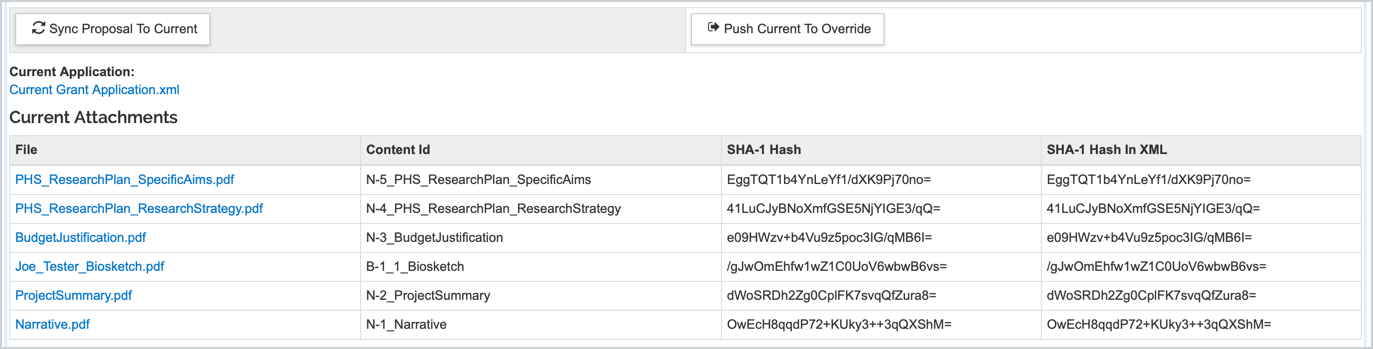
If any changes are made to the proposal then you can use the Sync Proposal To Current button to pull in the most recent application information - be aware that all proposal Validations should be cleared before this action.

Once the proposal is final and synced you can then use the Push Current to Override to generate the Overridden Application section where you will be making the changes to transmitted XML.

After the Push Current to Override action you will notice that the XML will generate an Overridden Application file that will be used to make alterations and also pull in all the associated Attachments in the Overridden Attachments section.
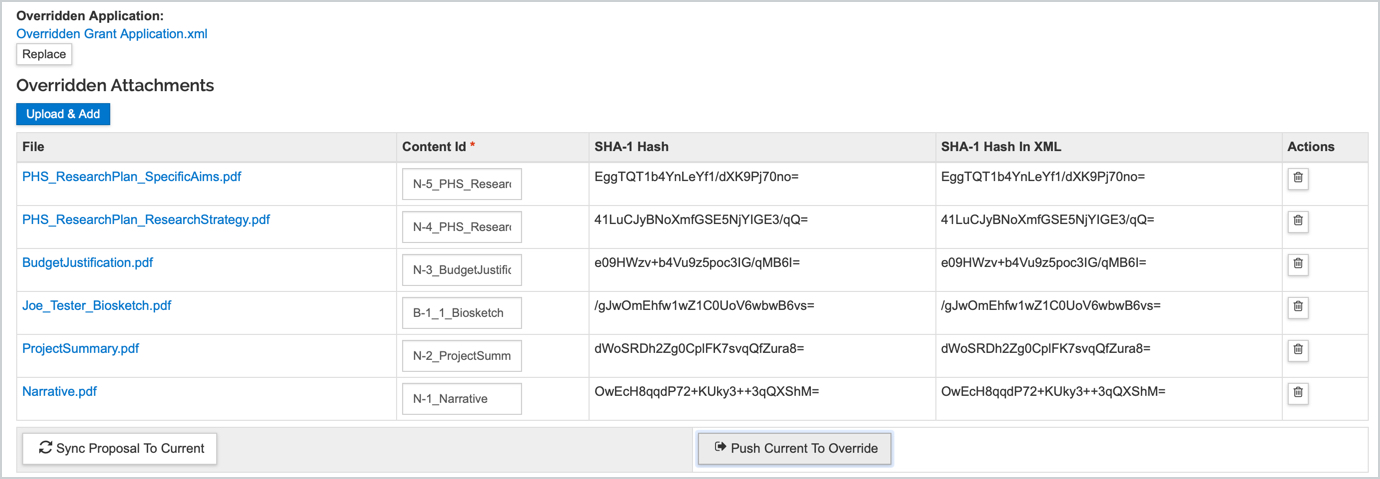
If any alterations are needed in the proposal you will need to do the Sync Proposal To Current and then Push Current to Override action again and then proceed with the edit to the XML per the below instructions.
If you want to remove the Submission Override entirely you can use the Remove Override button.

Steps to Edit/Replace XML (not related to Attachments)
If the edits to the XML going to Grants.gov do not relate to any attachment changes you can follow the below steps to make the update.
- After the Push Current To Override action open the Overridden Grant Application.xml file with an appropriate app to edit XML (i.e. Text Editor, MySQL, BBEdit).
- The XML will open in on line (not wrapped) and this is required for the XML to transmit properly so do not reformat the view or wrapping logic of the XML.
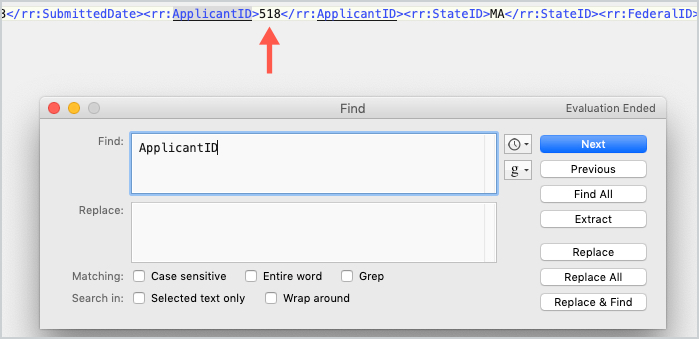
- In the XML find the appropriate section of the form that requires update and make that change. For example, in the SF424 (RR) if you needed to override the Applicant Identifier field (defaults as Proposal Number) you would find the field in the XML (recommend using the Find feature) and then replace with the value you desire:
- After the desired changes are made save the XML with a slightly different name to differentiate from original.
- In the Overridden Application section use the Replace button under the file and search/return the newly created file - click Update.
- Click the Save button at bottom of page and you're ready to do the Submit to S2S action.
- If anything changes with the proposal the entire process will need to be redone.
Steps to Edit/Replace XML (including changes to Attachments)
Making changes to the Attachments within the XML is slightly more complex due to the additional references in the XML that must be updated. There could be issues with the attachment ContentID or Hash in the system generated XML that are causing validation errors that need to be updated. Or you may need to replace an attachment, however, it would be more advisable to do this directly in the Proposal Attachments tab. A few notes on using the Attachments section in Submission Override:
- hash is unique identifier to match the submission and list all attachments
- ContentID = href in XML
- Update hash will update the header hash in the XML
Steps to update ContentID:
- In the Overridden Attachments panel update the Content Id in the row for the desired attachment.
- Click Save; notice that the SHA-1 Hash in XML field is blank because it can't find the newly created Content ID is not found in XML:
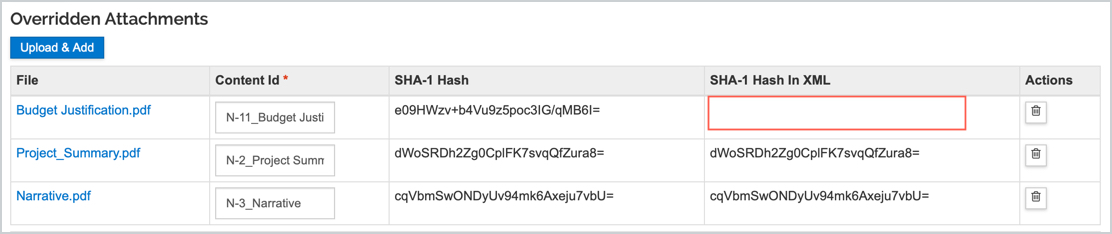
- Open the Overridden Grant Application.xml file and update the Content ID (href) for the specific attachment in the XML to the new value. Also, if there are other changes required to the XML as explained in above steps you would do these in this step. Once all changes are complete save the XML with a slightly different name to differentiate from original.
- In the Overridden Application section use the Replace button under the file and search/return the newly created file - click Update.
- Click the Save button at bottom of page and you'll notice that the SHA-1 Hash in XML field is populated but it does not match the SHA-1 Hash and there is now a refresh icon in the Actions column:

- Upon clicking the refresh button it will update the SHA-1 Hash in the XML to match and after you save the record again and you're ready to do the Submit to S2S action.
NOTE: A less common use case would be if you need to add an attachment that is not currently mapped by the system but that would require handcrafting the XML to include the appropriate ContentID (href) and other required pieces in the Overridden XML file.
Notes
- If a proposal has a Submission Override and the proposal is copied; the override will copy but set as inactive
- If a Submission Override is present a validation warning will display warning the user that an override exists (pre and post submission) and upon submit an extra warning will display that needs to be confirmed before it will transmit.
- If the Submission Override is used the Forms print will not look at the submitted override XML and will still display the system generated forms. You will only be able to view the transmitted XML file to see the updates and they cannot be print previewed in PDF.
- The XML will open in on line (not wrapped) and this is required for the XML to transmit properly so do not reformat the view or wrapping logic of the XML when making alterations and saving.
Comments
0 comments
Article is closed for comments.