
Overview
Data Override is a method for authorized users to make minor changes to a proposal document that has been submitted into workflow as an alternative to returning the document to the initiator; which is used to make significant changes. Users with the appropriate role with permission ALTER_PROPOSAL_DATA can perform a Data Override. To set up the options available in the Data Override dropdown can be configured in the Proposal Dev Editable Columns maintenance document.
Notes on functionality:
- Once a proposal is fully approved the Data Override icon will no longer be available; including history of changes already made.
- It is recommended to not include fields for override that could affect budget calculation (i.e. Proposal Type) or routing approvals.
- It is recommended to not include fields for override that have validations/business rules associated.
- Fields available for Data Override are fields that only allow one value. Because of our recent change to allow multiple CFDAs the data override for the CFDA no longer works.
- 'Include Subaward(s)?' option also does not currently work in data override.
- The character limit may be shorter in data override than the character limit in some of the original fields which may limit your ability to update.
To Perform a Data Override
The Data Override option is available in the top header on enroute proposals to those users with the appropriate permission.

Once clicked it will bring up a popup window that allows you to select from the Field to Edit to chose the configured field you want to change. Once selected it will prefill the existing entry from the proposal (if there is one) in the Current Value field. You can then update via the New Value field; depending on how the field is configured this could be a dropdown or manual entry. You can then add additional notations on the change in the Comments field.
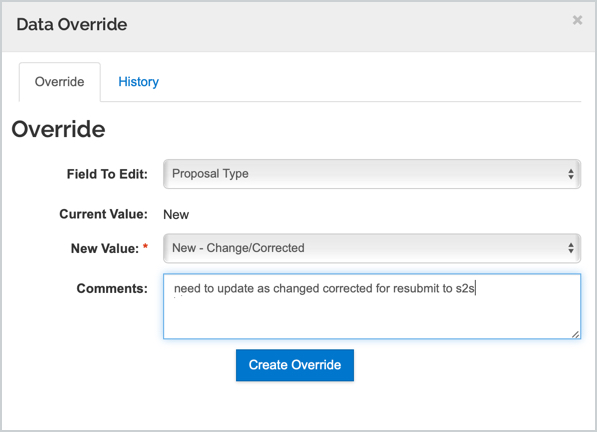
When you click the 'Create Override' button it will give you the option to send a notification around the update to desired recipients; the proposal aggregator is the default recipient. Once a Data Override action has been performed on a proposal the pencil icon beside Data Override in the proposal toolbar will present in orange instead of gray.

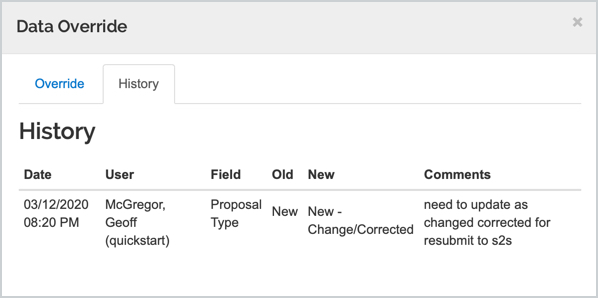
Also, when users open the proposal document an information box is presented with the notice that a data override action has occurred. If you click on the Data Override you can click on the History tab to see all changes that have occurred on the proposal.
Comments
0 comments
Article is closed for comments.