
Overview
Kuali Research has robust validations that catch the vast majority of errors before a proposal is submitted to Grants.gov. In some cases, a submitted proposal will generate errors that require a changed/corrected submission. In this case, the steps below must be followed to revise and resubmit your proposal.
Copying Your Proposal
Once you are aware of errors on an S2S submission, the first step to do a Changed/Corrected submission of your proposal is to copy the Proposal Development document.
Search for and return the Proposal Development document you need to do a Changed/Corrected submission for.
You can copy the proposal from the search screen using the copy link in the Actions column, or from within the proposal using the Copy link in the Action Bar at the top right of the screen.
After you click Copy, complete the following fields that will display in the Copy light-box shown below.
- Lead Unit: Select the Lead Unit for the Proposal. This field is included in the Copy process since Copying is the only way to change a Lead Unit once it's been saved to a proposal.
- Budget?: Check Yes. Include budget(s).
- Budget Version: Select For Submission Version
- Attachments?: Check Yes. Include attachments.
- Questionnaires?: Check Yes. Include questionnaires.
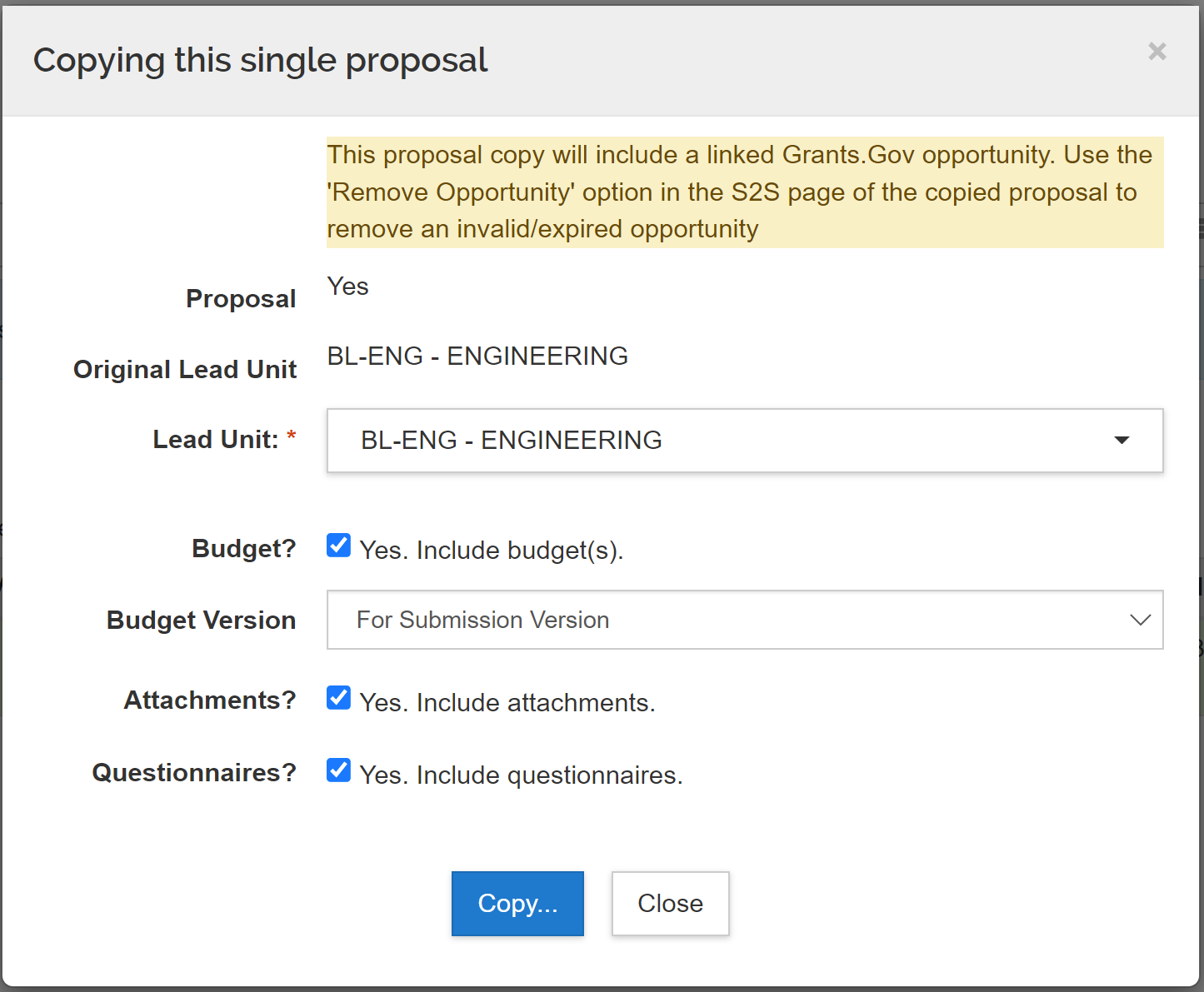
When you press Copy... a new Proposal Development document will load with the data you indicated above copied over. The warning displayed on the Copy to New Document screen only applies if you are using a previous S2S proposal as a template for a new submission. Since you are resubmitting a recent proposal do not unlink the S2S opportunity.
Click on the more... link in the upper right-hand corner of the screen to show additional details of your proposal, including a link back to your original Proposal. This link is important since it will allow you to go back and review the certification and routing annotations from the original proposal.

Next, select the appropriate Changed/Corrected Proposal Type for the Proposal you are resubmitting.
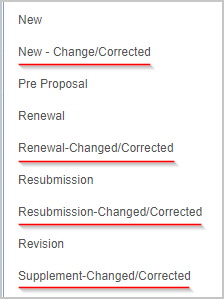
When you make this selection, the Original Institutional Proposal ID field will appear. Enter the Institutional Proposal number from your original submission in this field. You can use the magnifying glass icon to search the Institutional Proposal table for this record and return it. This number can also be found in the Medusa display of your original proposal.
Next, navigate to the S2S Opportunity Search page and update the Submission Type field to Change/Corrected Application. Also, confirm that your Opportunity ID is correct.

Navigate to the Sponsor & Program Information section and verify that the Prev Grants.Gov Tracking ID field has the correct Grants.gov Tracking ID entered. (The Prev Grants.Gov Tracking ID should have copied over from the Proposal you copied.)
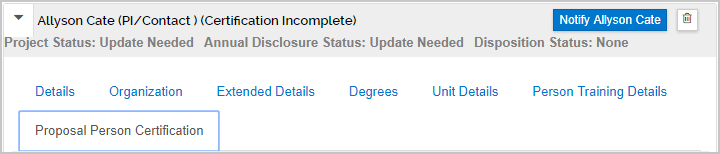
Next, navigate to the Key Personnel screen and notice that all the certifications are now marked as incomplete. Because there is a link back to the original certification it is possible to proxy certify this proposal and use the original Proposal Development document as the official certification. Complete all necessary Certifications with the answers from the original proposal. Be Certain This Complies With Your Institution's Policies for Change/Corrected Submissions.
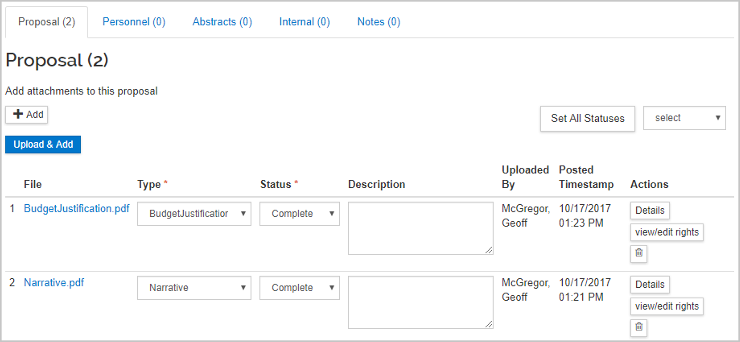
Next, navigate to the Attachments screen and set all of your attachments to Complete.
Next, Navigate to the Budget Screen and set your budget as a Complete Budget and mark it to Include for Submission using the Budget Actions menu.

The fields required for submission have all been set in the proposal.
Be sure to fix the item(s) for which this changed/corrected proposal is needed.
When the proposal is ready to submit again, go to the Summary/Submit page and press the Submit for Review button. Follow your institution's policies related to routing and resubmission. You can set up your approval nodes to not fire on Changed/Corrected actions by using the Cross Module Functionality - KRMS Basic Rule Setup functionality to apply logic to your workflow nodes per the Cross Module Functionality - PeopleFlows article. Alternatively, you can bypass the approval nodes in the Route Log using the functionality covered in the Proposal - Superuser Approval article.
Once your proposal is fully approved, press the Submit to S2S button to complete the Changed/Corrected process.
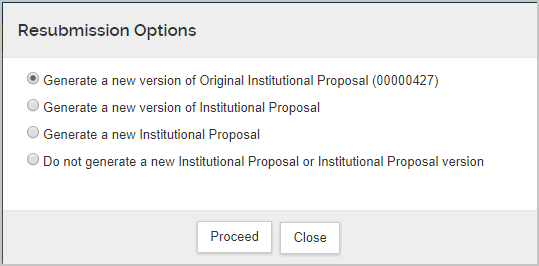
A Resubmission Options lightbox will display. Select Generate a new version of Original Institutional Proposal (IP Number) to avoid creating a new IP for this Changed/Corrected action. Then press the Proceed button.
Comments
0 comments
Article is closed for comments.