
Overview
The Institute Rate maintenance document is used to create new and maintain existing Institutional rates associated with the rate type, on/off campus and fiscal year. These table records may be used by multiple modules within the Kuali Research system for budget calculations for an institution (F&A, Fringe, Other, etc.). Institute Rates appear on the Rates tab of the Budget Document in Kuali Research. Rates can be managed in Kuali Research via either the Institute Rate or Institute Rate (beta) options in the Maintenance tab. Navigate to All Links on the Dashboard and search for Institute Rates or Institute Rates (beta) and select.
The difference between the two options is as follows:
- Institute Rate: This is the original Institute Rates table with the normal user interface that allows you to search and review all existing rates, create new rates, edit/copy/delete existing rates. This table allows you to edit all fields associated with the rate but it has to be done on an individual basis; mass updates are not allowed.
- Institute Rate (beta): The ENABLE_NEW_BUDGET_RATES_MAINTENANCE_LINK parameter needs to be set to ‘true’ for this option to appear in the Maintenance table. This is same Institute Rate table but within a new user interface that allows multiple updates at one time. This can save a lot of time for rate updates/changes entries but be aware of the limitations of using this interface (instead of the normal Institute Rate table):
- Cannot delete rates
- Cannot inactivate rates
- Cannot edit dates associated with rates
As best practice, Rates should be maintained at highest node possible in the Unit Hierarchy to minimize maintenance. Proposal and Award budget records search the hierarchy, traversing upwards, to find maintained rates. If the rates are applicable to ALL units, maintain them at the 000001 node. If the institution has distinct rates for schools or colleges in the hierarchy, then maintain their unique rates in the highest node possible for their branch in the hierarchy.
You do not need to enter in F&A and Fringe Benefit Rates for future fiscal years. Kuali Research will use the most current rate maintained for all out years until a later fiscal year rate is added. However, Inflation Rates must be maintained for future Fiscal Years. Inflation is assumed to be ZERO if the FY rate is not present in the Institute Rate Maintenance Table. Now that there is a 10-period Grants.gov budget form, you should maintain at least 10 future years in the Inflation table.
Lastly, it is always recommended to test adding new rate or changing existing rates in a lower test environment prior to applying any changes to your production environment.
Adding/Modifying Institute Rates
You can use either Institute Rates or Institute Rates (beta) to create new institute rates. Below outlines adding via both methods.
Institute Rate - Create New/Edit
Within the Institute Rates maintenance table there is a 'create new' option in the right hand corner for users that have the appropriate permission. Or if you want to edit an existing rate you can click on the 'edit' option. Upon clicking the create new or edit you will be given the following fields to complete to create or modify the institutional rate.

- Description: Required - Document description for the edit or create new action.
- Activity Type Code: Required - Enter the code if known or look it up using the icons provided. This is the number in the Kuali Research system that is associated with the name of a major university function. Type the suspected value in the box and click the direct inquiry icon or click the lookup icon to search for and return the value to populate the box automatically.
- Fiscal Year: Required - Enter the fiscal year for the accounting period in yyyy format. Identifies the institutional fiscal year for which a rate is effective.
- On/Off CampusContractContract Flag: Required - Indicates whether a rate applies to on campus use or off campus use.
- Rate Class Code: Required - Enter the value that uniquely identifies the rate class that is to be associated with the Institute, or locate and select it by using the lookup or direct inquiry tools. Type the suspected value in the box and click the direct inquiry icon or click the lookup icon to search for and return the value to populate the box automatically.
- Rate Type Code: Required - The code value associated with the type of rate that the system applies to specific cost elements (i.e. fringe benefits, F&A, inflation, etc). Type the suspected value in the box and click the direct inquiry icon or click the lookup icon to search for and return the value to populate the box automatically.
- Start Date: Required - In the Kuali Research budget module, this is the date for which a rate becomes effective. Click the calendar icon to select, or type in mm/dd/yyyy format to populate the box with the desired date.
- Unit Number: Required - Enter the unique number associated with the unit, or look it up and select it using the provided tools. Using the top level of the hierarchy (i.e. 000001) will apply the rate for all units or if you use another specified unit it will apply to that unit and all other units under it in the hierarchy.
- Rate: Required - Enter the rate value with a decimal point.
- Active: Click within the checkbox to select the item and make the rate active. Removing the checkbox will make the rate not active upon finalization.
After clicking the submit button and the record goes to FINAL the new rate or updates will display in the Institute Rate table and be applied accordingly. You can also use the 'copy' option to create new rates similar to existing rates and make the minor modifications (i.e. Fiscal Year) necessary which can save some time. The 'delete' will allow you to remove a rate entirely from the Institute Rate table or if you prefer you can simply inactive the rate via an edit.
Institute Rate (beta) - Create New/Edit
Make sure the ENABLE_NEW_BUDGET_RATES_MAINTENANCE_LINK parameter is set to ‘true’ to make the Institute Rate (beta) link available in the Maintenance tab. Upon clicking Institute Rate (beta) the Institute Rates for University window will display and you can select a Rate Class Type to display.

Once selected it will display all the associated information for the given rate class type in view mode where you can narrow down the information further if desired. Also, be aware you may need to scroll right to continue to view all relevant fiscal year information.
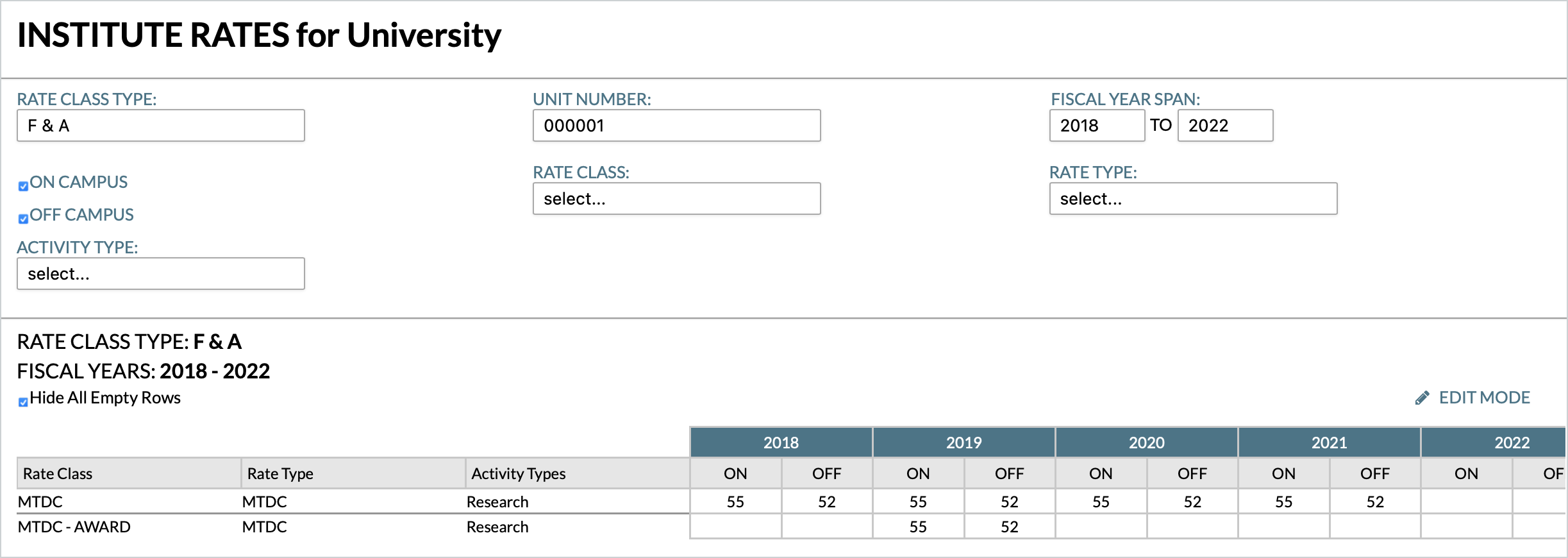
To enter a new rate you will need to click the EDIT MODE button to enable edit and create new fiscal year options:

Once you enter edit mode you can edit existing rates or use the NEW FISCAL YEAR button to add additional fiscal year columns for the rate.

With each click of the NEW FISCAL YEAR button it will add an additional column for future fiscal years - be aware it will add to the far right of the fiscal year columns which may require you to scroll over to see. Once you've made the necessary rate additions for the appropriate Rate Type, Activity Type, etc. you will need to use the action buttons to either Save the new entries or the Cancel to return to the view mode with no additions/changes made.

The Institute Rate (beta) interface allows you to make multiple changes in one transaction but please remember the limitations of the Institute Rate (beta) table:
- Cannot delete rates
- Cannot inactivate rates
Comments
0 comments
Article is closed for comments.