
Overview
The S2S Form Configuration table in the Maintenance tab works in conjunction with S2S form functionality and whether a form is available/active to end users. This maintenance table gives institutions the ability to customize the forms available and the messages that appear to users when attempting to upload an opportunity that contains the given form. This table is useful if new forms are released but institutions still want to do additional testing and don't want to make the form available yet to end users for use in their proposals. Below outlines more about this functionality.
Using the S2S Form Configuration Table
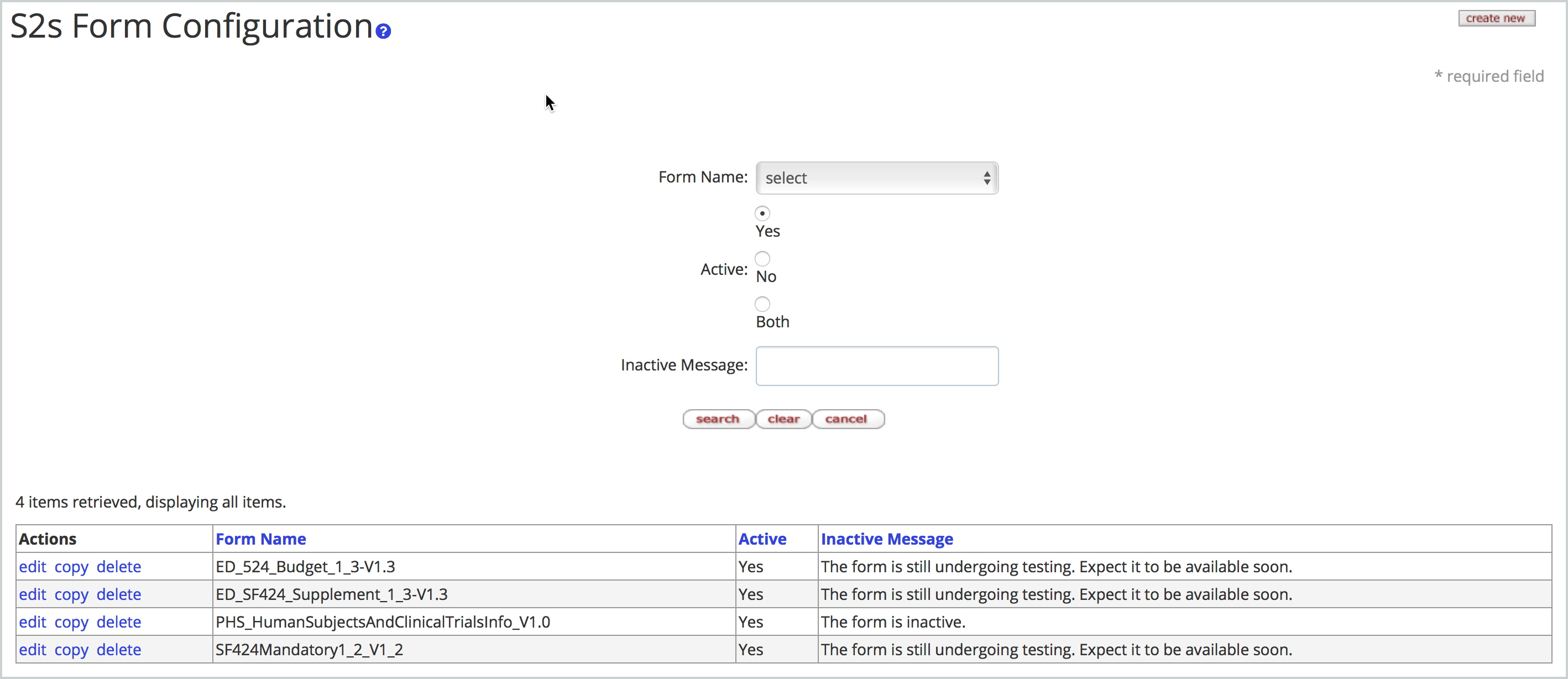
Users that have the appropriate permissions can edit, copy, or create new in the S2S Form Configuration maintenance table. Forms listed in this table as active 'Yes' (or not listed in the table at all) are considered active and are available for use in the system for S2S opportunities. Forms that are listed in this table as active 'No' will prevent users from using the form and not allow attachment of an opportunity if the form is mandatory.
The Inactive Message will appear whether the form is listed as Active 'Yes' or 'No'. If the form is Active then it will display the message as a warning to the user which allows schools to provide additional instructions or information related to the form if they wish. If the form is active 'No' then the message will display as a validation error.
Again, if you wish to activate a S2S form you can either make sure there is no entry for the given form in the table or make sure the entry for the specific form is marked as Active 'Yes'. By default, when Kuali fully releases a S2S form it is available to the user and no entry will be present in this table. However, if we are currently still testing the form it will be in this table as inactive until it's released fully.
Below is more information on the available fields when creating a new entry or editing an existing one in this maintenance document.
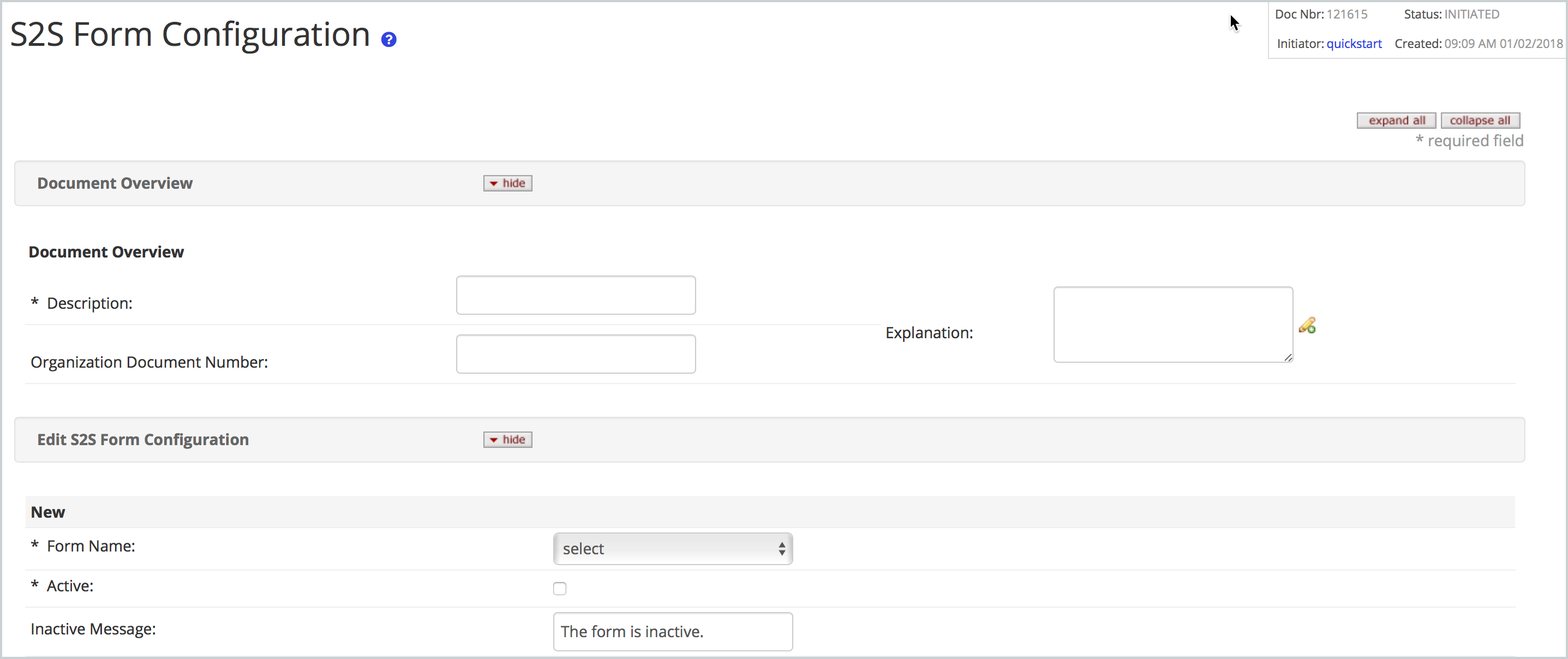
When creating a new entry or editing an existing one in the S2S Form Configuration you will have the following available and required fields:
- Description (Document Overview): Enter a description per your institution's naming standards.
- Form Name: Dropdown list of all available S2S forms you can select to use in this table.
- Active: Toggle to mark whether the form is active or not active; checked makes the form Active 'Yes'.
- Inactive Message: The validation message that will appear to the end user when they attach a S2S opportunity containing the form. Please note, this message will appear for any form in this maintenance table (active or inactive). If the form is active the validation message will display as a warning. If the form is inactive the validation will display as an error and prevent use or prevent attaching the opportunity entirely if the form is mandatory for the opportunity. If you don't desire a message at all you can simply leave the Inactive Message blank.
Comments
0 comments
Article is closed for comments.