
Overview
Institutions need to periodically update the questions they ask during their Proposal Development process. These changes can be driven by regulatory, or institutional policy updates. The Kuali Research system allows an institution to update a Questionnaire, while maintaining the integrity of data in historic documents. Below outlines the process of making these changes and a video walking through the process is at the bottom of the article.
Note: All Questionnaire changes that include alterations in question structure or display logic should be built and tested in Sandbox or Stage before being built in Production to validate logic design and display behavior.
Modifying a Question
In some cases a Questionnaire change involves the creation of new questions. In this case follow the steps in the Maintenance - Create a Question article for all questions to be added to your Questionnaire. If you have to update an existing question follow the steps below:
First Identify the Question ID of the Question you want to update:
- Open a Proposal Development document that includes the Question you need to update.
- Navigate to the Question. It will either be on the Person Certification page or the Questionnaire page.
- Click the
 icon next to the question you want to update and make note of the Question ID.
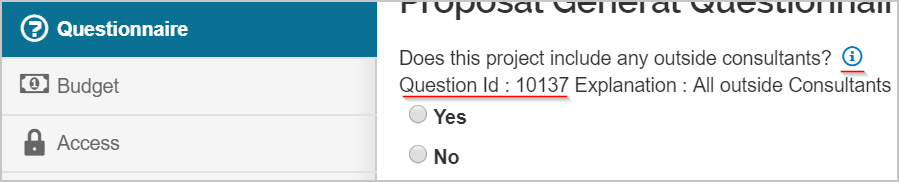
Navigate to All Links on the Dashboard and search for Question and select. Search for your Question based on the ID you noted above.
Click the edit button next to the question you are searching for and make the appropriate adjustments to the Question document that displays. For a full detail of what options are available for revision, see the Maintenance - Create a Question article.
Complete the above steps for each question you need to modify in your Questionnaire.
Modify your Questionnaire
Navigate to All Links on the Dashboard and search for Questionnaire and select. Search for the Questionnaire you want to update and press the edit link next to the appropriate Questionnaire.

Navigate to the Content Panel of the Questionnaire document. Each question you updated in the steps above will have the statement 'A new question version exists. Open question to update' next to them.
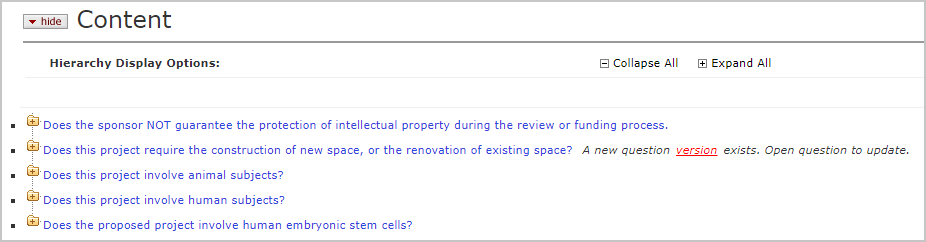 To confirm that you want these updates to apply to this questionnaire you must open each Question and click the update version button. This button will only display on Questions that can be updated. Once you've clicked the button the new version of the question will display, and you can confirm the details of the Question.
Once you've updated the Questions you versioned in the steps above you can make further changes to the Questionnaire Content by adding new Questions, deleting/reorganizing Questions, or updating the Usage details. For a full breakdown of the tools available to customize a Questionnaire see the Maintenance - Create a Questionnaire article.
Once you have made all the appropriate changes to your Questionnaire press the submit button at the bottom of the screen.
At this point the new version of your Questionnaire will display on all new Proposal Development documents, In Progress Proposal Development documents where the Questionnaire has not been answered, or on new Personnel added to existing Proposal Development documents if you updated the Proposal Person Certification Questionnaire. Proposals that are already enroute or approved will continue to display the Questionnaire that was current at the point they were submitted to routing.
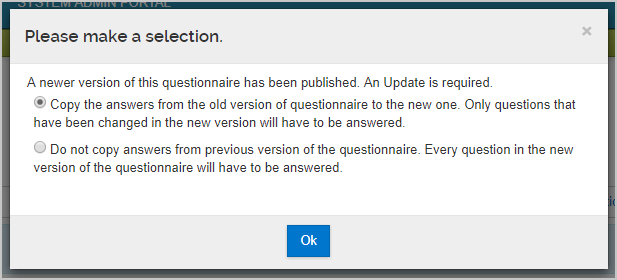
Questionnaires that are In Progress and include answered questions at the time you updated your Questionnaire will display an Update Available button in the upper right hand corner of the Questionnaire.

When you click the button a lightbox will display asking if the user wants to copy existing answers to the new Questionnaire version, or if they would like to start over with a blank Questionnaire. The system will copy answers to unchanged questions if indicated, but any questions that have been updated will need to be answered manually, as will new Questions.
The Proposal Person Certification Questionnaire behavior on update is defined by the CERTIFICATION_UPDATE_FEATURE_FLAG parameter. This questionnaire will behave per the description below depending on how you have set this parameter.
| Parameter Value | Description |
| N |
When you update a Certification Questionnaire and open an In Progress Proposal Development document with existing Personnel they will display the version of the Questionnaire that was active when they were added to the document. You can update to the new version of the certification by deleting the existing personnel from the Proposal and adding them again. This configuration avoids potential conflicts if a faculty member has already certified when a certification update is made, and the person opening the Proposal Development document is someone other than the faculty member. |
| Y |
The certification Questionnaire for each person on a Proposal Development document will behave in the manner described above for Proposal level Questionnaires. |
Video Walkthrough
Comments
0 comments
Article is closed for comments.