
Overview
The Kuali Research system includes several business process driven Notifications that alert user to actions taken within the system. The notifications come configured out of the box with the most common recipients. Institutions man change who receives these notifications depending on their business processes. This may involve leveraging existing roles in the system, or it may involve using custom roles that your institution has setup as part of your implementation. The first step in this configuration process is linking unused roles to the appropriate Notification Namespaces using the Notification Module Role document.
Linking a Role to a Notification Module
Navigate to All Links on the Dashboard and search for Notification Module Roles and select.
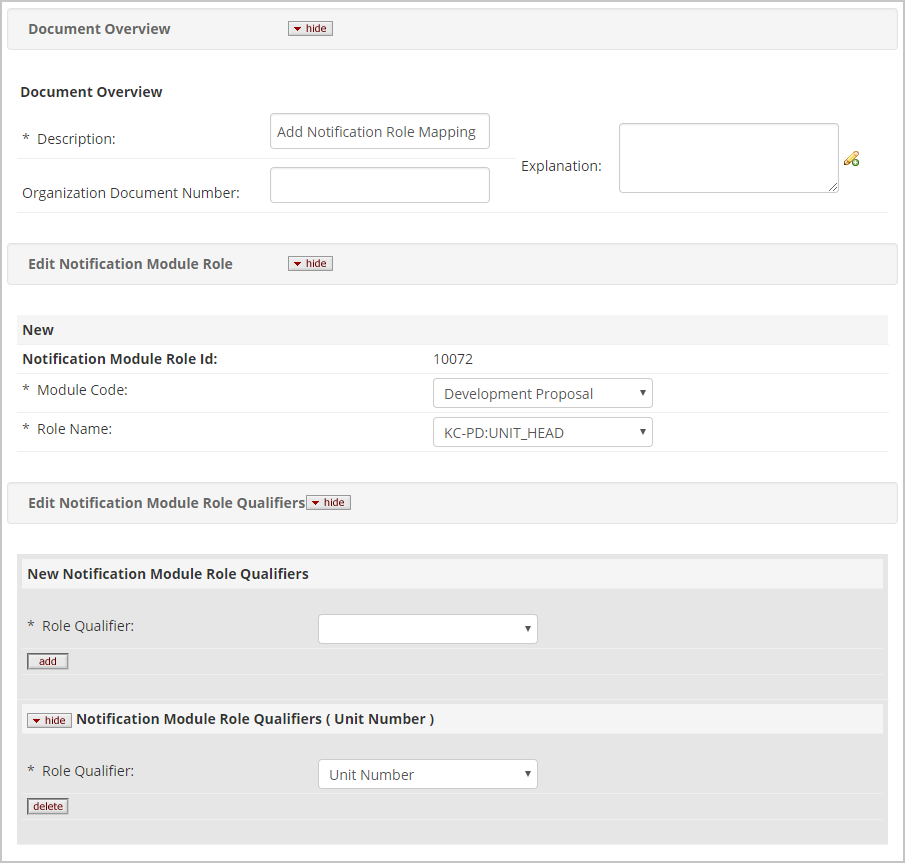
Enter the Module you want to link a role to in the Module Code search parameter and complete a search. Check to make certain the role you need is not already available. If it is not, click the 'create new' button in the upper right-hand corner of the screen and complete the following fields on the Notification Module document that displays.
- Description (Document Overview): Enter a description per your institution's naming standards.
- Module Code: Select the Module you want to link your role to. Once linked this role will be available as a recipient for all Notifications sent by that module.
- Role Name: This dropdown includes all roles in the system. Find the role you are want to link to the Notification system.
- New Notification Module Role Qualifiers: You can add multiple qualifiers to a given role, and in some cases, the notification system will need to check against the qualifiers to send a document to the correct recipient. Several of the modifiers in this dropdown list are now depreciated. When linking to a document level role such a Aggregator in Proposal Development or COI in Award be sure to include the appropriate Module Qualifier (Award for Award, Proposal for Proposal Development, etc.). When linking to a Unit, Unit Hierarchy, or Unit Administrator role include the Unit Qualifier. Be sure to press the add button after entering these values or the entry will be lost.
When you have completed the above fields press the submit button at the bottom of the screen.
Add a Role to a Notification's Recipients
Navigate to System Admin Portal > Maintenance > Shared > Notification
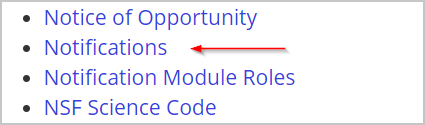
Enter the Module you want to link a role to in the Module Code search parameter and complete a search. Find the Notification you want to add recipients to and press the edit link next to that Notification's search return.
Scroll down to the New Notification Recipients panel. Select the role you added above in the Role Dropdown and then press the add button.
Once you have made this change to your Notification add other recipient roles if appropriate and then press the submit button at the bottom of the screen. Now members of this role will receive this notification when it is generated.
Comments
0 comments
Article is closed for comments.