
Overview
The My Disclosures section in the menu will show all COI disclosures for the logged in user and allow you to create a new one (if never created) or update an existing disclosure.

My Disclosures
Within My Disclosures if you have never submitted a disclosure you will have the 'Create Disclosure' button to initiate your disclosure for the first time.
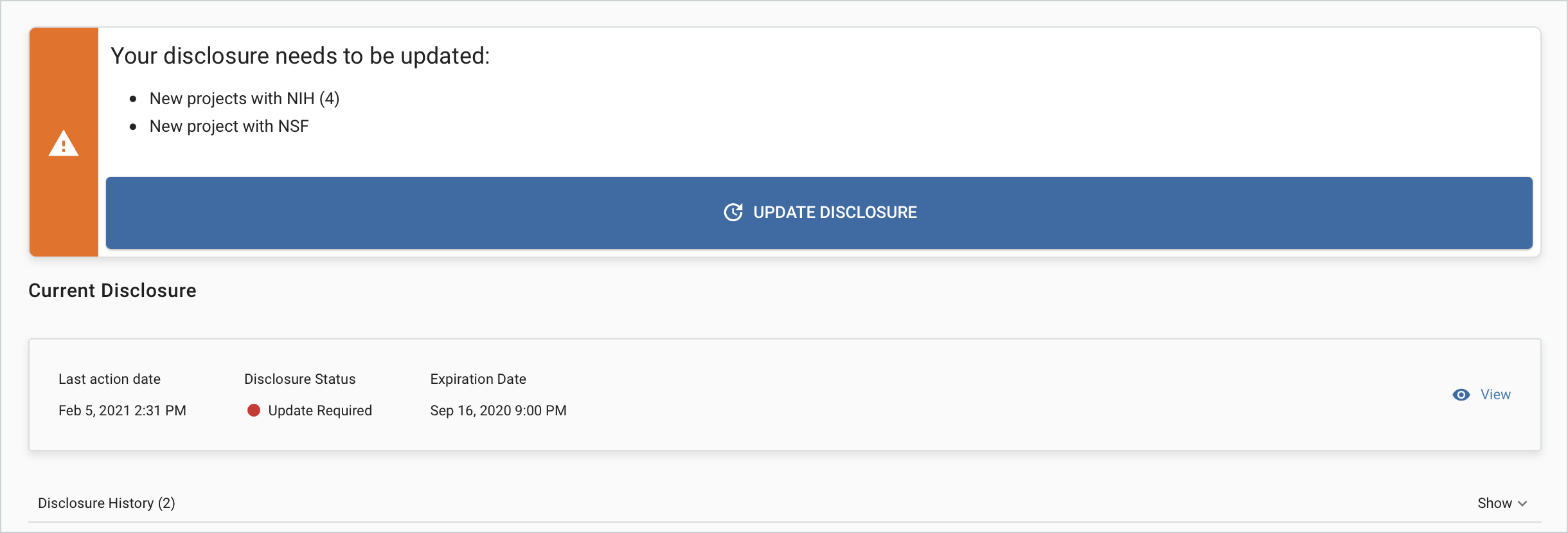
If you have previously submitted a disclosure you will see your current disclosure with the Last Action Date, Disclosure Status, and Expiration Date. Underneath it will list the history of your submitted disclosure(s) in the Disclosure History panel that can be expanded. The current and prior disclosures can be opened to view the detail. You will also see the 'Update Disclosure' option where you can create a new disclosure and make the necessary updates. If your disclosure requires an update due to new project activity it will list the reason your disclosure requires update.
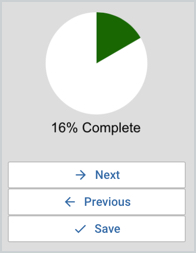
Once in the initial or updated disclosure you will fill out the necessary fields in the form and navigate via the Next, Previous, and Save options. It will also give you a percentage complete to let you know how much is still required in the application.
More information on creating a disclosure is in the Create and Update Disclosure Walkthrough article.

When you go a page with the Project Declarations or Project Questionnaire gadget included you will see a list of your projects. Any projects that have unanswered questions will be highlighted at the top of the screen so you know where attention is required.
After completing the disclosure and it's at 100% complete the user will have the submit button available.

If the 'Allow Reporters or their Delegates to request a disclosure be returned for Edits' option has been enabled in General Configuration then after submit the user has the option to request a send back.
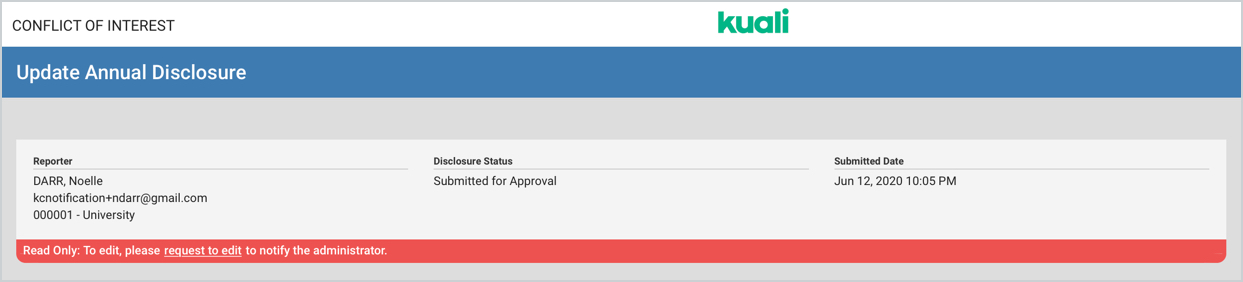
This will send a notification to the COI Administrator letting them know the reporter wants the disclosure to be sent back. This notification is controlled via the 'A reporter requests the disclosure to be sent back' notification in Configuration - Customization Notifications.
Once the request has been sent the banner will update to the below.
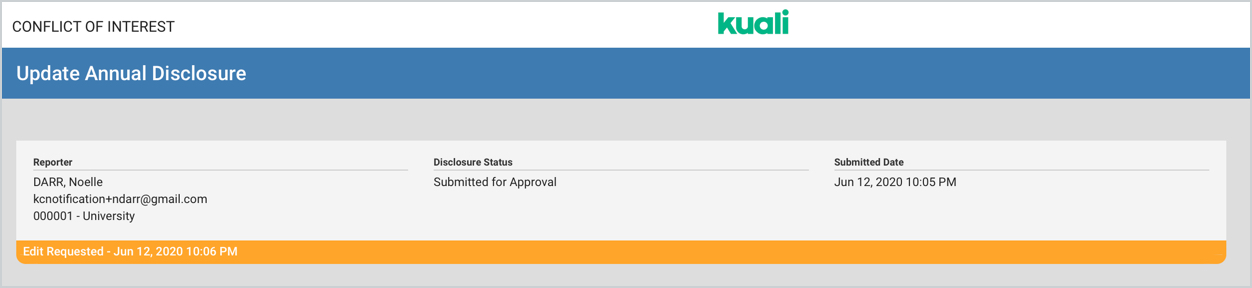
If the user wants to cancel this request they can use the 'Cancel Edit Request' option.

This will send another notification letting the COI Administrators know the request has been canceled. This notification is controlled via the 'A reporter cancelled the request for their disclosure to be sent back' notification in Configuration - Customization Notifications.
Comments
0 comments
Article is closed for comments.