
Overview
The 'Schedule System Jobs' in the COI Configuration dropdown allows COI Admins to view and manage certain jobs that run in the system. There are a number of system jobs and some can be edited and others (greyed out) cannot; more information can be found below.
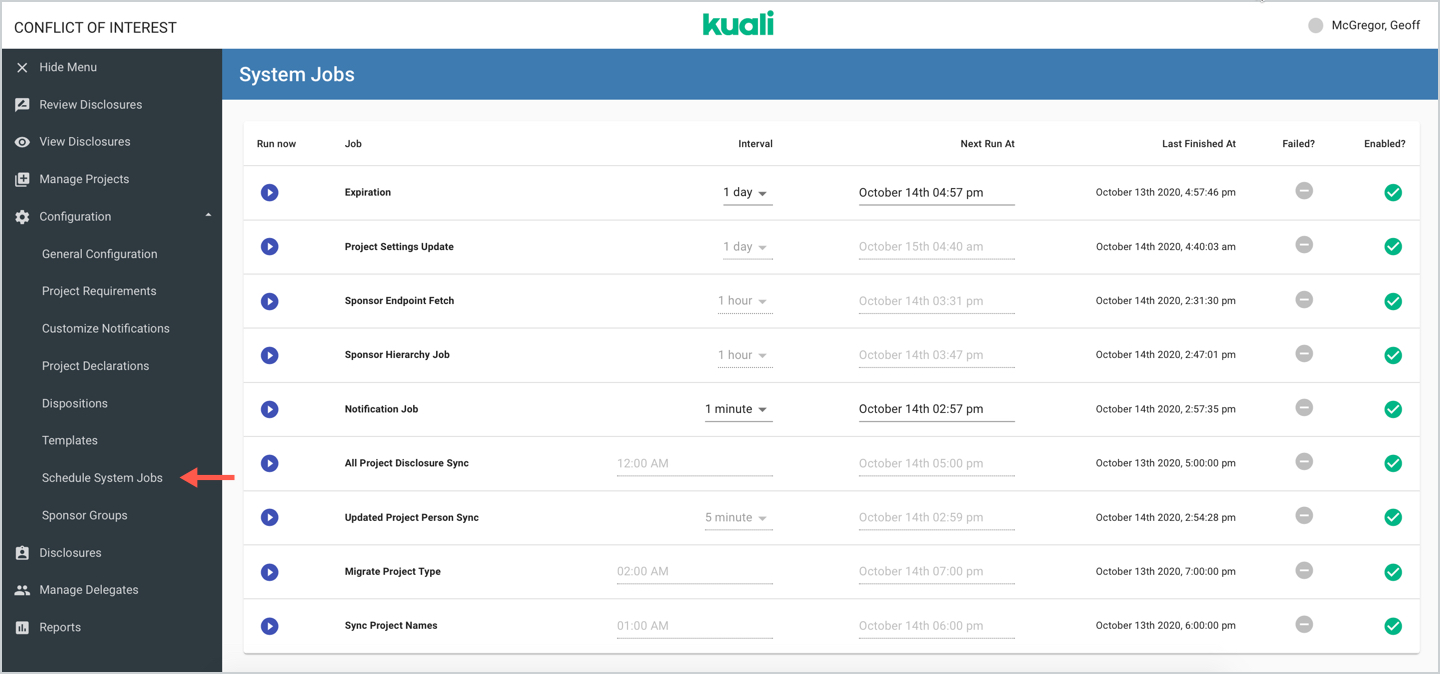
System Jobs
Below describes the function of the jobs available for edit:
- Expiration - will look for all disclosures past the Due Date configured in General Configurations and sets them to expired. Once they are set to Expired it will trigger the configured Expire Notification to notify users of expired disclosures. This COI Expiration Job is also used for triggering Expiration Reminder emails.
- INACTIVE - Notification Job - will run any new or pending notification (not one already sent) in the queue with the new notification service and send.
The remaining jobs that cannot be edited are read only to have an understanding of what current jobs are running in the system application and if any failures have occurred. They can be used for diagnostic purposes or the 'run now' option used during testing/implementation phases. Please note - these jobs should not be run manually unless in conjunction with testing or implementation tasks by your Kuali Customer Success Manager or Support Representative.
Available Actions
As a COI Admin, you can edit or enable/disable the above mentioned editable Jobs by clicking on the desired job fields so you can configure the job to best meet your institution's needs. Others that are greyed out cannot be edited since they're hardcoded jobs required in the system. These other jobs should not be run manually unless in conjunction with testing or implementation tasks and it will be performed by your Kuali Customer Success Manager or Support Representative.
For the jobs that are editable (Expiration and Notifications) these can be edited with the following attributes listed:
- Run now - Allows you to run a job ad-hoc if desired - please read the descriptions of each job above to know the implications of running the job manually.
- Job - (read only) Name of the job.
- Interval - Selection of the interval or when the job will run (i.e. every 1 day, 1 hour, 5 minutes, 1 minutes, 30 seconds).
- Next Run At - This is the date that the job will run next (depending on your recurrence) but if you need to delay you can change this date to a future day (make sure not to select a date in the past).
- Last Finished At - (Read Only) Will display the date the job ran successfully.
- Failed - Will show red if the last run was unsuccessful.
- Enabled - Will show green if enabled - and the only jobs that can be toggled on/off are the Expiration and Notification jobs.
Note: In order to trigger the Expire Notifications the Expiration job will need to be enabled to set disclosures to Expired and the Expire Notification enabled in Configuration. The job will not only run to Expire past due disclosures but also trigger the Expiration Reminder Notifications. It is recommended to set at least one job at a daily interval to appropriately trigger disclosure Expirations and the Expiration Reminder notifications.
Comments
0 comments
Article is closed for comments.