
As research teams continue to involve a greater number of collaborators across a protocol’s lifecycle, there has been an increasing need for multiple users to make independent form changes. These varying degrees of changes are most notably documented along the amendment process of a protocol. Kuali Protocols now offers users the ability to have multiple pending amendments, or a renewal with parallel amendment(s) in progress.
The Multiple Amendments feature can be initiated through the configurations page in Kuali Protocols. System configurers will need to enable the ‘Allow Multiple Pending Amendments’ setting under the ‘General’ configurations option in either the IRB Configuration or IACUC Configuration page. Once enabled, multiple pending amendments introduces a much more granular approach to the amendment process. When initiating an amendment or an amend/renew action, users will be required to select the sections that they would like to include in their amendment. A selected section cannot be modified by other pending amendments until this amendment is approved, disapproved, or abandoned.
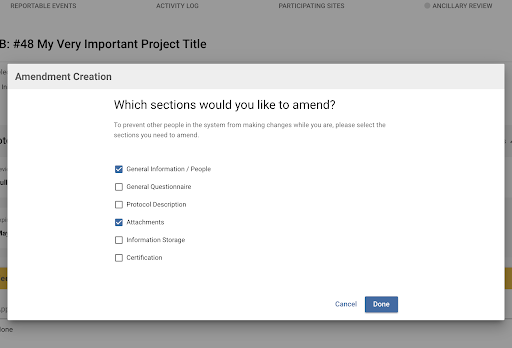
In the image above, a user takes the ‘Amend’ option on an approved protocol to trigger an amendment and selects the 3 sections to edit when the multiple amendments configuration is enabled. The ‘General Information’ and ‘People’ sections will always be amended together by default.
Editing sections in an amendment retains similar functionality to the current single amendment process in Kuali Protocols. Users retain control over editing the entirety of the section. Additional sections to edit can also be added to the in-progress amendment in situations where the user requires further edits. Likewise, users can remove sections from their amendment, allowing other users to edit those sections in a second amendment. Any sections on a protocol that are not being edited in a users amendment will display as read-only sections.
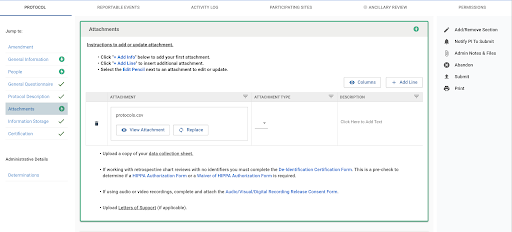
The image above displays a protocol with its first amendment in progress. A user has selected the desired sections to edit. The Jump To menu indicates these sections through a green lighting indicator, as well as a green container around the sections being edited on the form itself.
A new button, labeled ‘Add/Remove Section’ allows the user to add and remove sections from their existing amendment when an amendment is in progress.
When creating a subsequent amendment, users listed on the protocol with full-access are able to create amendments along with adding and removing sections in the existing amendments. When a secondary user initiates an amendment while an existing amendment is in progress, the user is only able to edit those sections which are currently not being edited in the existing amendment. The Jump To menu will also indicate which sections are restricted from being added to this second amendment when the amendment is in progress. These safeguards prevent information from being updated in these areas when users are completing multiple parallel amendments, while retaining an accurate version history and maintaining compliance in accordance with the code of federal regulations part 11.
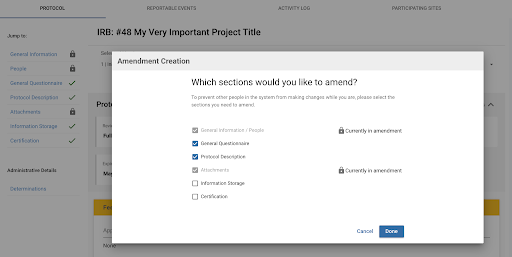
The image above shows a secondary user creating an amendment by navigating to the most recent approved protocol version and selecting the ‘Amend’ option. This user is presented sections that are available to edit, while being restricted from selecting sections being edited in existing amendments.
Navigating across multiple in-progress amendments is also made clear through multiple components across Kuali Protocols. The versioning dropdown is used to indicate which amendments are currently active and in progress. The Manage Protocols page will also show the multiple protocol versions that are in-progress and in an amendment stage through both the submission type and status columns.
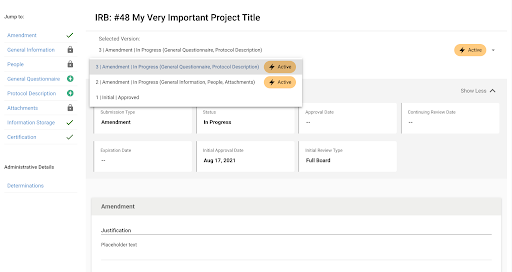
The image above displays the version drop down indicating the active amendments.
Once submitted, amendments can be separately reviewed and approved or sent back for necessary revisions. Upon approval, a new version is created with the merged data, displaying an ‘Amended | Approved’ status with the new version number.
Before turning this on in PRD we suggest you enable first in your SBX environment to verify and walk through the functionality to make sure it’s something you want to implement locally. More information on the Multiple Amendments functionality can also be found in the Protocols - Amending or Renewing a Protocol article. If you have any questions please feel free to submit a support ticket.
Comments
0 comments
Article is closed for comments.