
Overview
While most schools choose to manually provision and de-provision permissions in the Kuali system, it is possible to automatically update permissions based on an individual's appointments using the Unit Role Sync functionality. This setup allows a school to link a Unit or UnitHierarchy role to a configuration that will populate the role with all users in the system based on specified appointment details. Configuring and testing this feature in a staging environment before setting the configuration up in production is recommended.
Note: This feature scripts memberships in, and bypasses the Role maintenance document due to the performance needs to changing so many memberships at once, so no record is kept in the Kuali database of when a user's permissions are changed by this feature.
Adding a New Unit Role Sync Configuration
Go to All Links on the Dashboard and search for Unit Role Sync Configuration and select.
Click on the create new button in the upper right hand corner of the screen and complete the fields that display on the Unit Role Sync document that loads.
- Description: Enter a description per your institution's naming standards.
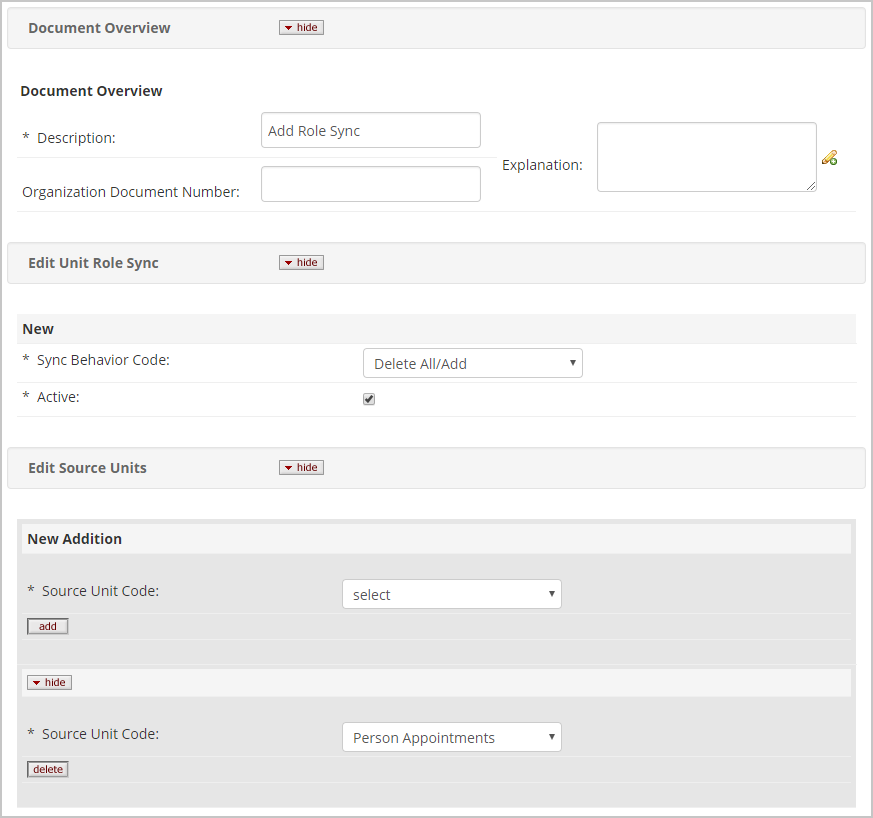
- Sync Behavior Code: This defines how the sync will treat existing memberships in the roles it syncs to.
- Delete All/Add: This option will delete all memberships in the role, and then add new memberships based on each user's Unit affiliation. This is the recommended selection as it will automatically clean up permissions when a user moves between units.
- Delete/ReAdd: This option will update memberships for a given person/unit pairing, but will not impact other memberships. (Example Inez Chew has a membership in the synced role with a BL-IIDC modifier that does not descend hierarchy and another membership modified by IN-MED that does. She has an appointment in BL-IIDC, and the sync configuration is setup to descend hierarchy. When the sync runs the BL-IIDC membership is updated to descend hierarchy. The IN-MED membership is not removed, even though Inez Chew does not have an active appointment in IN-MED)
- Ignore Existing: This option will ignore all existing memberships in a role and only add new memberships, though it will not duplicate any memberships that already exist in the role. This is only recommended for one-off syncs. If this option is linked to a nightly or weekly sync it will accrete additional memberships as individuals change appointment units within the institution.
- Active: This should be checked if you want this configuration to run when the system executes your role membership sync.
- Source Unit Code: This selection will define where the system looks for Units modifiers to apply to the synced role.
- Person Appointments: If this is added to your Sync configuration then every user in the system will be given a membership in the synced roles for each unit they have listed in the Appointments section of their Person Extended Attributes document.
- Person Primary Departments: This will assign members to the synced role based on each user's primary Unit in their KIM Person record.
- Person Secondary Departments: This will assign members to the synced role based on each user's non-primary Units in their KIM Person record. If you want the system to assign memberships based on all units in the KIM records, this value and Person Primary Departments can be added to a single Unit Role Sync Configuration.
Press the add button after listing your Source Unit Code
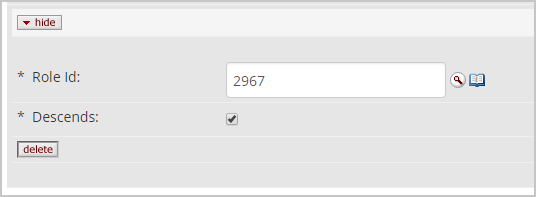
- Edit Target Roles: This section is where you list the roles you want permissions to sync to when the job executes. You can list multiple roles. Recommended best practice is to not make any manual changes to roles that are setup to sync regularly based on person units. This may require the creation of a custom role. If this is necessary follow the steps on the System Admin - Create a Custom Role article. The Sync functionality only works with Unit and UnitHierarchy type roles.
- Role Id: This lookup will allow you to select the role you want memberships synced to when the Unit Sync executes.
- Descends: If this is checked and the role you have selected is a UnitHierarchy type role then all assigned membership will have the descend hierarchy flag checked. If this is unchecked then all memberships will have the Descend Hierarchy flag unchecked. If you select a Unit type role the system will not allow you to submit your configuration if this box is checked.
Press the add button after listing your Role Id and setting your Descend flag appropriately.
When you have entered the values above press the submit button at the bottom of the screen.
To test your permission configuration navigate to System Admin Portal > System Admin > System > Execute Unit Role Sync Process
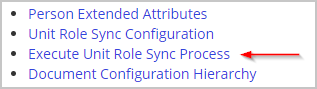
When you click this link the system will display the following message
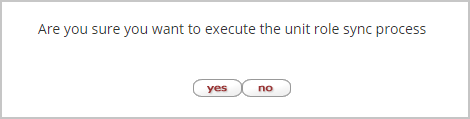
Press the yes button. After a brief wait the system will display the following message.

You can now check the role, or individual person records to make certain that the role memberships have populated the way you expect.
Configuring A Recurring Sync
Once you've tested your sync configuration and it is working the way you want it to, you can schedule a regular sync to keep your memberships up to date. This can be configured via the parameters below.
| Parameter Name | unit.role.sync.job.cronExpression |
| Parameter Description | This parameter defines when the role sync quartz script will run. This parameter is only effective if the unit.role.sync.job.enabled parameter is set to Y. |
| Out of the Box Value | 0 0 6 1/1 * ? * |
| Valid Parameter Values and Behavior Explanation |
This parameter accepts a Cron expression. There are several guides for constructive cron expressions available on the web. The default value for this parameter will execute the role sync at 6 AM daily. Note: The cron expression from this parameter is pushed to the server configuration when the server restarts. Kuali Research systems restart nightly. So a change to the schedule won't take effect until the day after it's modified. |
| Parameter Name | unit.role.sync.job.enabled |
| Parameter Description | This parameter activates the Role Sync Quartz job, so role sync configuration is executed on a regular basis. |
| Out of the Box Value | N |
| Valid Parameter Values and Behavior Explanation |
N = When this parameter is set to N role sync will not be automatically run. Y = When this parameter is set to Y the role sync definied in the Role Sync Configuration table will be executed on a regular schedule defined by the Cron Expression in the unit.role.sync.job.cronExpression parameter. Note: The Quartz job setting from this parameter is pushed to the server configuration when the server restarts. Kuali Research systems restart nightly. So a change to this configuration won't take effect until the day after it's modified. |
Once you have your configuration tested, and your cron job configured your role memberships will update on the schedule you've set, and no futher action is needed unless you choose to update your sync configuration in the future.
Comments
0 comments
Article is closed for comments.