
Overview
Kuali Identify Services provides a mechanism for testers to login as other users while working through business processes in Kuali applications. This is important when testing the full lifecycle of certain documents such as Protocols or COI disclosures. This feature must be turned on individually in each non-PRD instance (not available in PRD). If you need to use Kuali User Impersonation submit a support ticket and indicate in which environments you would like this feature activated.
NOTE: On premise implementations (non-hosted customers) can enable locally by setting features: { impersonation: true} on the institution.
Accessing the Kuali Users Screen
Note: Only users with the User Role of Admin will be able to complete the following steps.
Navigate to https://[Your kuali Environment domain]/users
Example: https://university-sbx.kuali.co/users
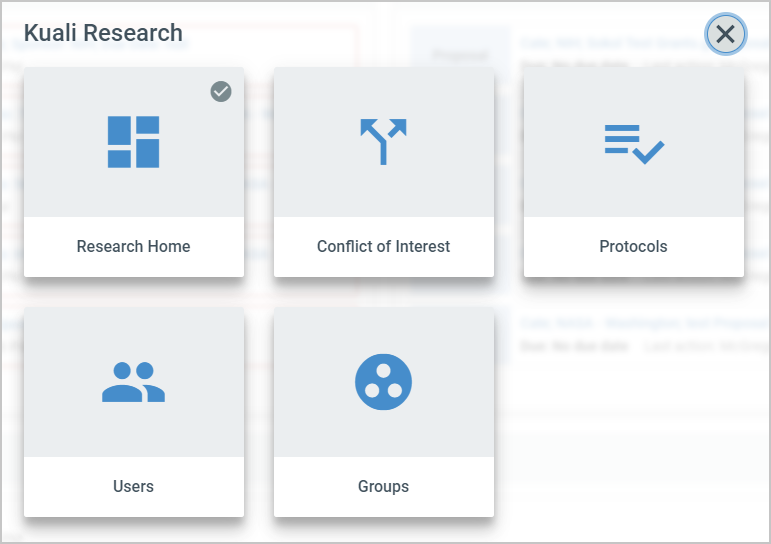
If you are using the Research Dashboard you can get to users by clicking on the Switch Apps icon in the sidebar and then pressing the Users tile.

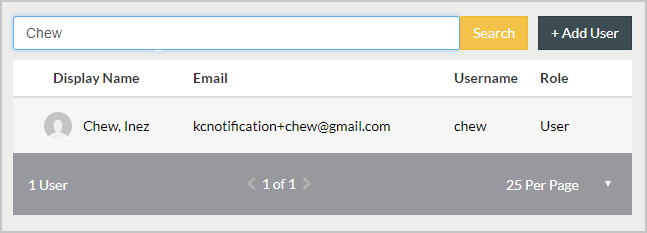
Search for the user you want to impersonate and click on their name.
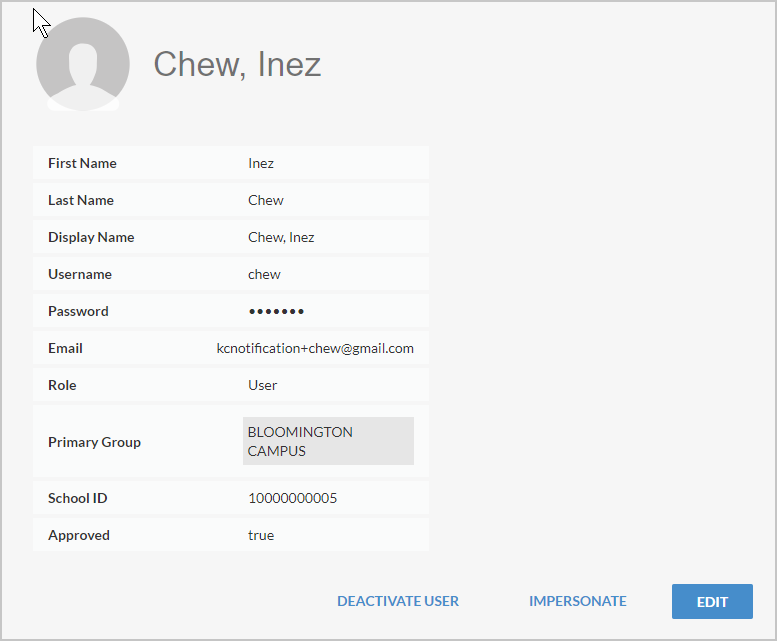
Press the Impersonate link on the user details screen that displays.
Note: If you do not see an Impersonate button search for your user account and confirm that your Role is Admin. If you are an Admin and do not have an Impersonate button submit a support ticket or work with your Customer Success Manager to turn Impersonation on in your environment.
After you press the Impersonate button you will be taken to the App switcher, and you can select the Kuali application you are testing.
Stop Impersonation
When you are done impersonating the user you can navigate back to the Users screen using the steps detailed above and click the Stop Impersonate icon to log back in as yourself.

From here you can either return to a Kuali application and continue work as yourself, or impersonate another user to continue testing.
Comments
0 comments
Article is closed for comments.